
Change it visually, then Compile
Replace one wired value in CollectCoin, preview the draft, and write one focused C# change.
On this page
One coin currently adds CoinsPerPickup. For a quick experiment, make that call add two coins and watch the source change only when you ask it to.
The problem
Section titled “The problem”PlayerController.CollectCoin passes a named constant into ScoreCounter.AddCoins. The input pin is wired, so it has no literal box to edit. You need to remove that data wire before a number can live on the pin itself.
When to reach for it
Section titled “When to reach for it”- You want to test a different argument without rewriting the whole method.
- A call already exists and only one input value should change.
- You want a draft you can undo before it touches source.
See it
Section titled “See it”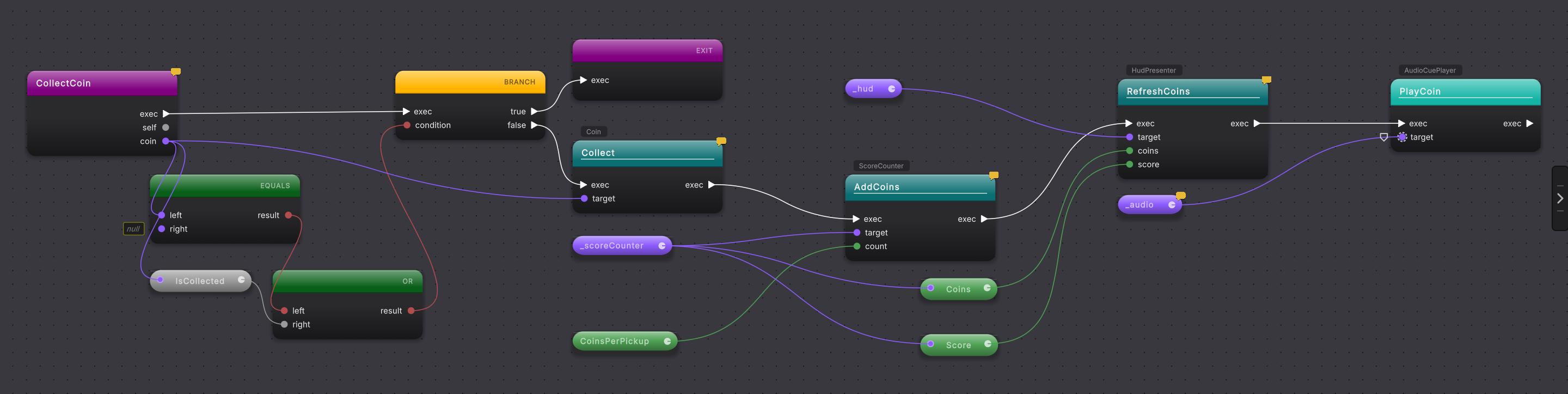
AddCoins call receives its value from the CoinsPerPickup constant pill.-
Open the Platformer project and Tools > Round Trip > Graph View. Press Cmd/Ctrl+K, choose
PlayerController, then selectCollectCoin. -
Find the
AddCoinscall. Itscountinput is wired from theCoinsPerPickuppill. A wired pin shows the connected value and does not offer literal entry. -
Hold Alt and left-click the colored data wire between
CoinsPerPickupandcount. Alt-click on a wire performs the same edit as its Break Link context action. Thecountpin becomes unwired. -
Click the now-unwired
countpin. Its inline literal editor opens. Type2, then press Enter or click away to commit the value. -
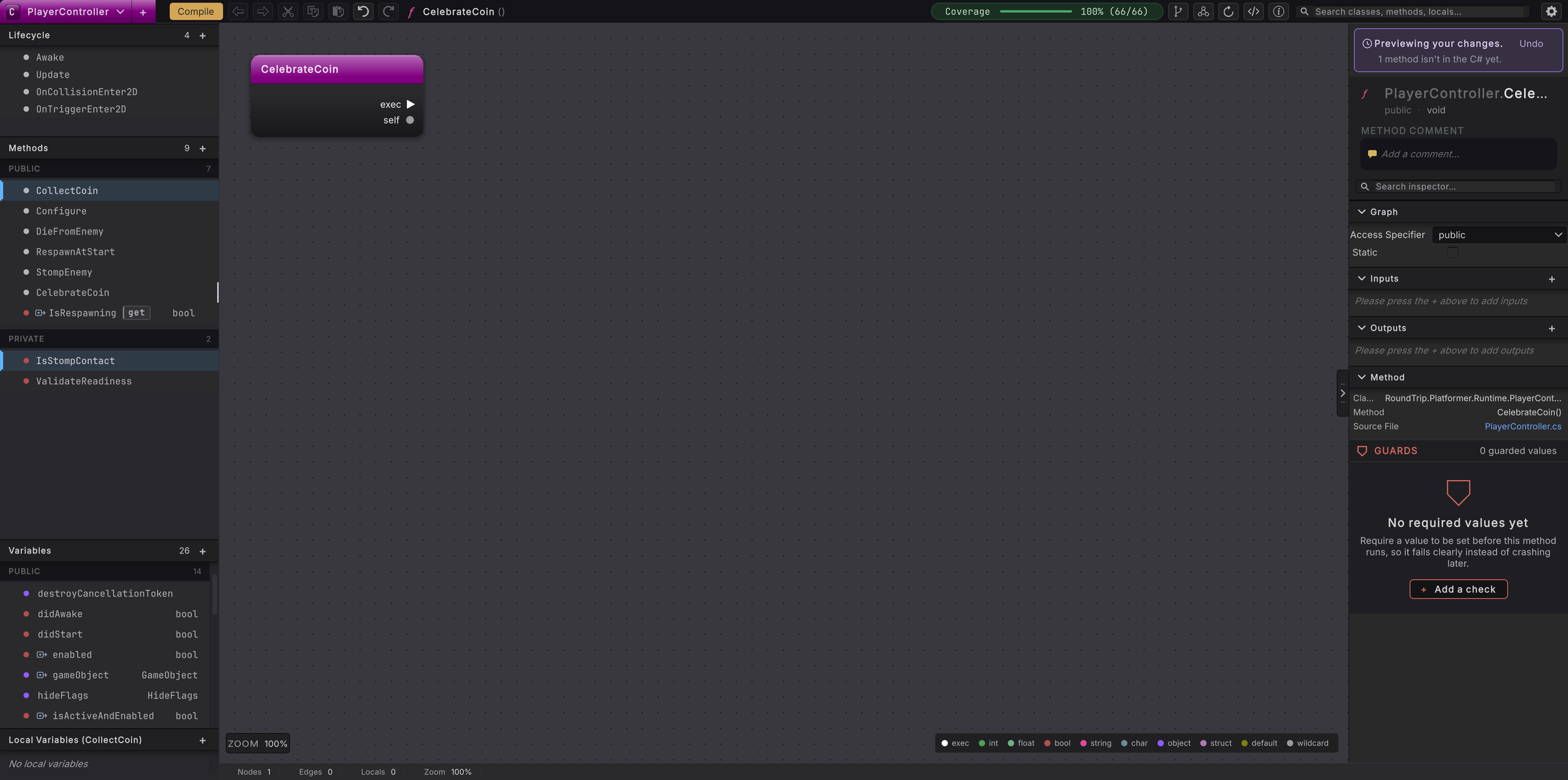
Read the panel pinned to the top of the right rail: Previewing your changes. It counts the edits that are not in the C# yet and carries Undo. The toolbar Compile turns amber, which means the graph has a draft. Open
PlayerController.csnow and the source still passesCoinsPerPickup.
-
Press Compile in the toolbar. Round Trip validates the pending wire and literal edits, writes the source, imports the file, and parses the method again.
-
Open
PlayerController.csand find theAddCoinsline. The receiver and method are unchanged. Only the argument now reads2. -
Return to the graph after Unity finishes compiling. The
countpin shows the literal2, because the graph has been rebuilt from the written method.
Two ways back
Section titled “Two ways back”Before Compile, use Cmd/Ctrl+Z. Undo restores the literal edit first and then the broken wire as you step backward through the draft history. The .cs file is untouched during those undo steps.
After Compile, the graph has already been re-parsed from source, so use version-control history. Right-click the changed method and choose Revert Method. That action is available for a modified, added, or renamed method when version control is detected. It restores the whole method from the configured baseline, normally HEAD, so inspect the diff first if the method contains other edits you want to keep.
When it goes wrong
Section titled “When it goes wrong”When it goes wrong
| Symptom | Check | Fix |
|---|---|---|
| Clicking the count pin does not open a value box. | Look for a colored wire still attached to the pin. | Alt-click that wire or use Break Link, then click the unwired pin. |
| Compile stays disabled after entering 2. | Confirm the editor committed the value and no pin value is invalid. | Press Enter, then hover the toolbar Compile; its tooltip says when a pending change needs attention. |
| The source still shows CoinsPerPickup. | Look for the Previewing your changes banner. | Press Compile and wait for Unity to finish importing the file. |
| Revert Method is disabled. | Confirm version control is detected and the method has a changed status. | Use ordinary source editing to restore the line, or configure version control before using method history actions. |
- Check what the AI did: use the same source and graph comparison on a larger edit.
- Pills and literals: see when a pin can accept an inline value.
- Changes and history: inspect, compare, and revert source-backed methods.