Your first method
Create a Unity class, add a method on the graph, and Compile one call into ordinary C#.
On this page
A blank project is enough. You will make a component, give it one method, and put a message in the Console without typing the method body.
The problem
Section titled “The problem”A designer needs a small gameplay hook, perhaps a message when a coin appears, but the project has no suitable component yet. The class and method both need to become normal C#, along with a call that another teammate can open.
When to reach for it
Section titled “When to reach for it”- You are starting a new behavior and the project lacks a class to hold it.
- You know what should happen, but you would rather choose calls and values on a canvas.
- You want the first result to be a small source diff that a programmer can read.
See it
Section titled “See it”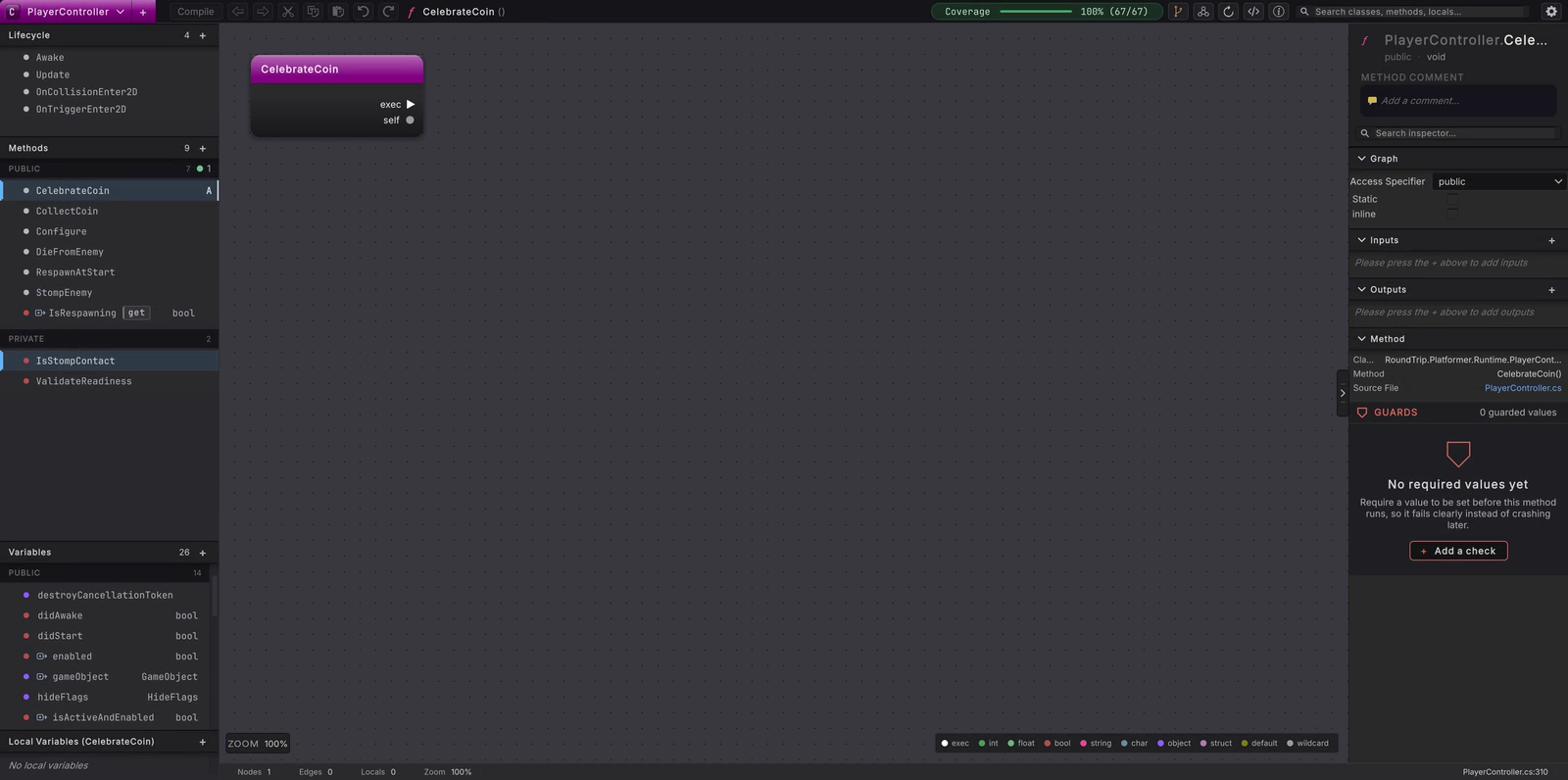
-
In Unity’s Project window, create a folder at
Assets/Game/Runtime. Select that folder. A source folder gives the new file a clear home. -
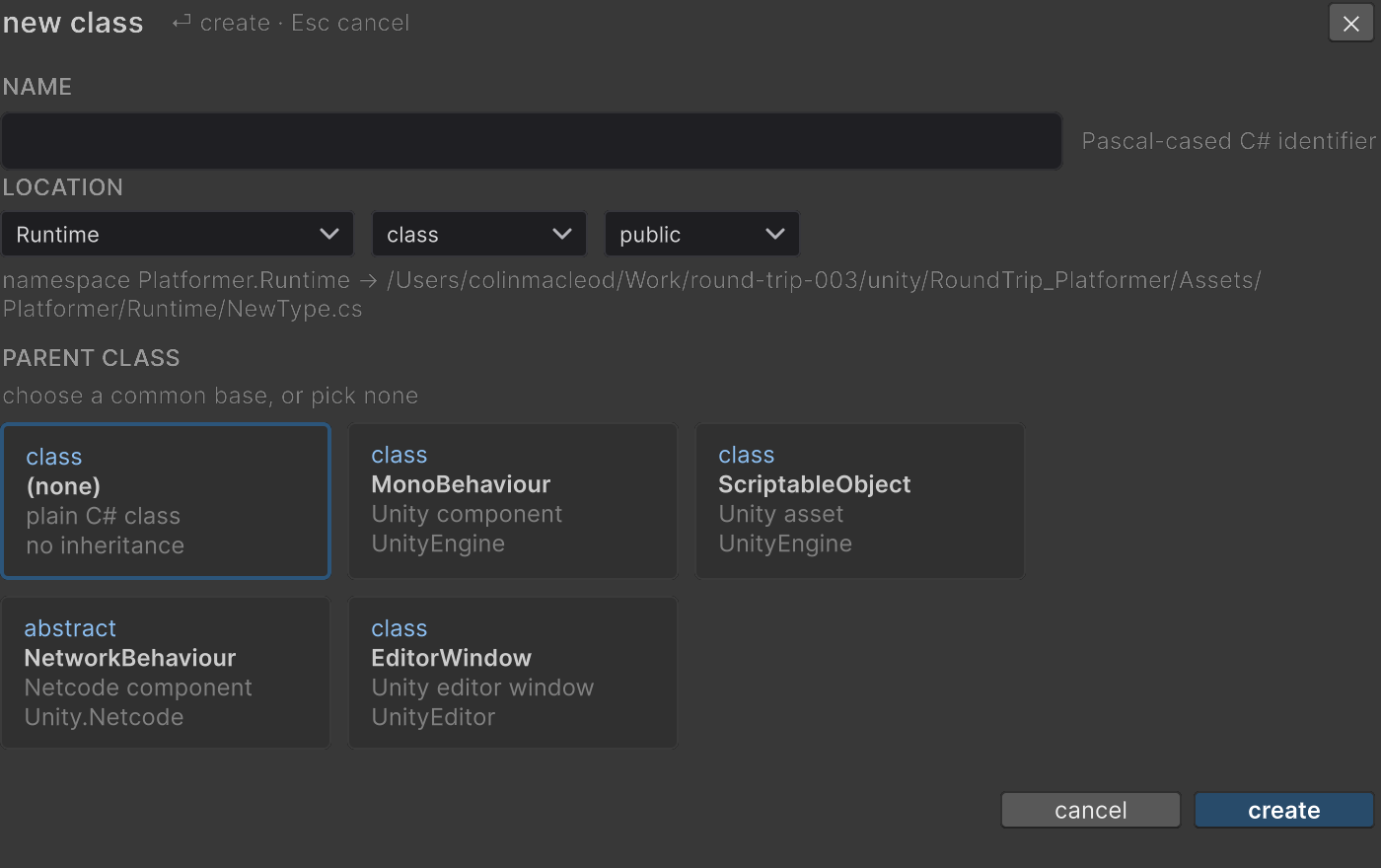
Choose Assets > Round Trip > New Class. The utility window title is new class.
-
Enter
CoinAnnouncerunder NAME. Under LOCATION, choose theRuntimesource folder, leave kind asclass, and leave access aspublic. ChooseMonoBehaviourin PARENT CLASS so the class can be attached to a GameObject. -
Read the resolved path beneath the location row. The selected source folder determines the namespace used by this window. The current window does not ask for a separate namespace value, so check the resolved result before choosing create.
-
Select
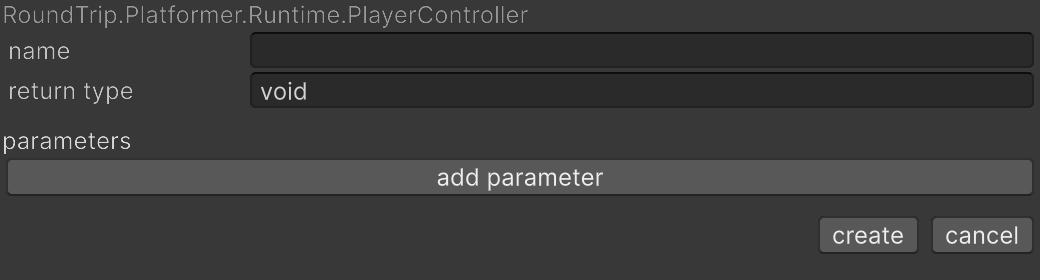
CoinAnnouncer.csin the Project window and choose Assets > Round Trip > New Method. The window title is new method. -
Set name to
AnnounceCoin. Leave return type asvoid, and leave parameters empty. The current window creates an ordinary public method. Access is fixed to public here; this window has no access picker. -
Choose create. Round Trip buffers the new method and opens its preview graph. Nothing has been added to the
.csfile yet. With the class open in Graph View, the + on the Methods rail section does the same without the window: the new row opens as a name box holdingNewMethod(thenNewMethod1,NewMethod2), Enter names it, and Escape keeps the default. -
Right-click blank canvas space. In the action menu, leave context sensitive on, find
Debug.Log, and use the call action. method group would name the method as a value; call invokes it. -
Connect the white exec wire from the entry node to the call if the new node is not already placed in sequence. Click the unwired
messagedata pin and enter the string literalHello from Round Trip. -
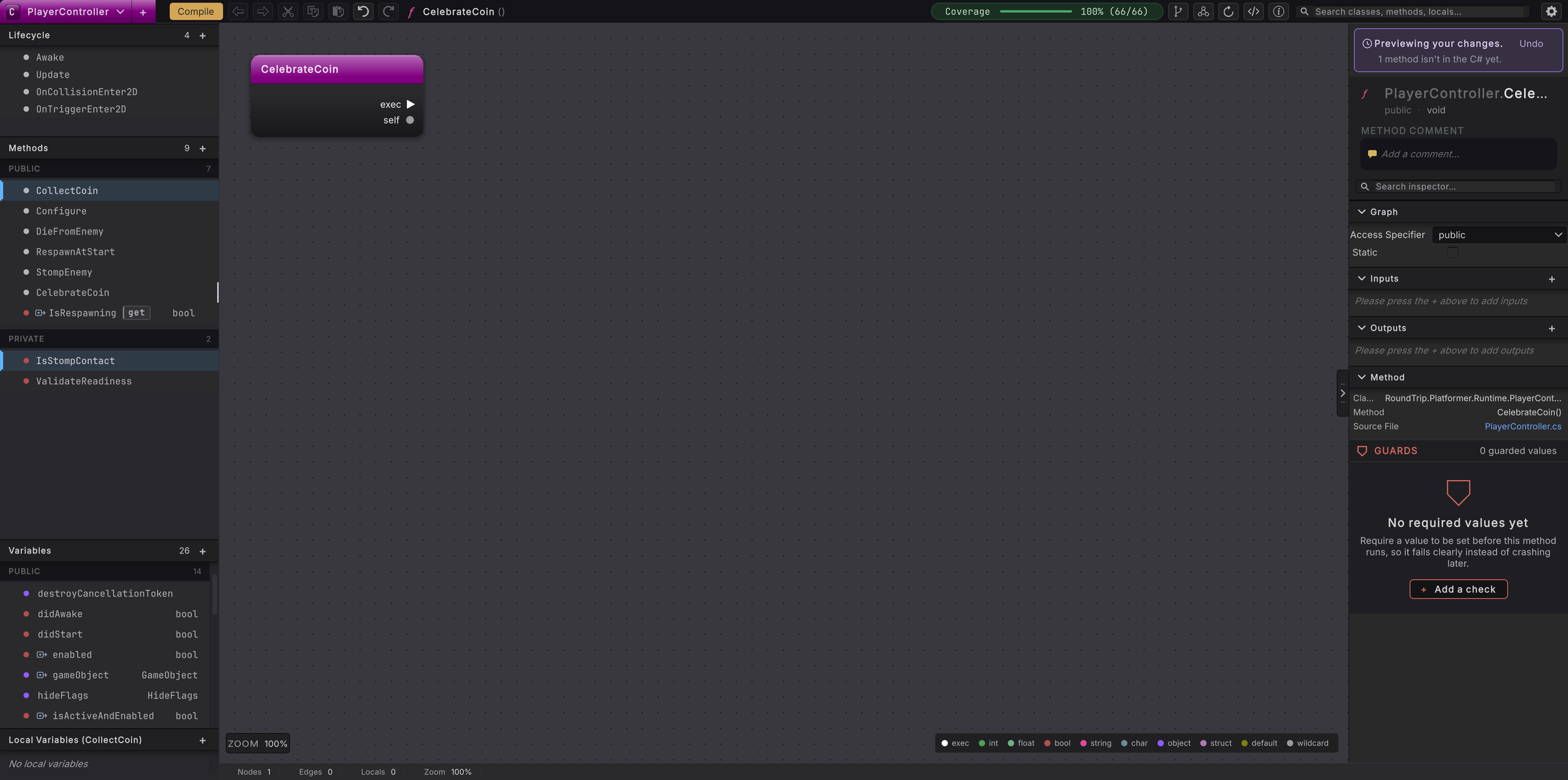
Read the panel pinned to the top of the right rail: Previewing your changes. The call and its literal are still a draft, and the toolbar Compile has turned amber. The source file has not changed.
-
Press Compile in the toolbar. Round Trip writes the method, asks Unity to import it, then re-parses the source into the graph.
-
Open
CoinAnnouncer.cs. FindAnnounceCoinand read the one call with its string literal.
When it goes wrong
Section titled “When it goes wrong”When it goes wrong
| Symptom | Check | Fix |
|---|---|---|
| New Class is disabled. | Confirm a folder, not a file, is selected in the Project window. | Select Assets/Game/Runtime and open Assets > Round Trip > New Class again. |
| New Method is disabled. | Confirm CoinAnnouncer.cs is selected and Round Trip has indexed its type. | Wait for Unity compilation to finish, then select the C# file again. |
| Debug.Log is missing from the call list. | Confirm the class inherits MonoBehaviour and the file can see UnityEngine. | Use the parent choice from step 3, then reopen the canvas action menu. |
| Compile is disabled. | Look for a valid literal and a complete exec path through the call. | Correct the pin value or wire, then hover the toolbar Compile to read why it is held. |
- Read a class you did not write: take the same graph reading skills into the Platformer.
- Method calls: choose calls, targets, and arguments.
- Preview and Compile: follow a draft from canvas to source.