
Method calls
Place a call node from the action menu, wire its target and arguments, then Compile.
On this page
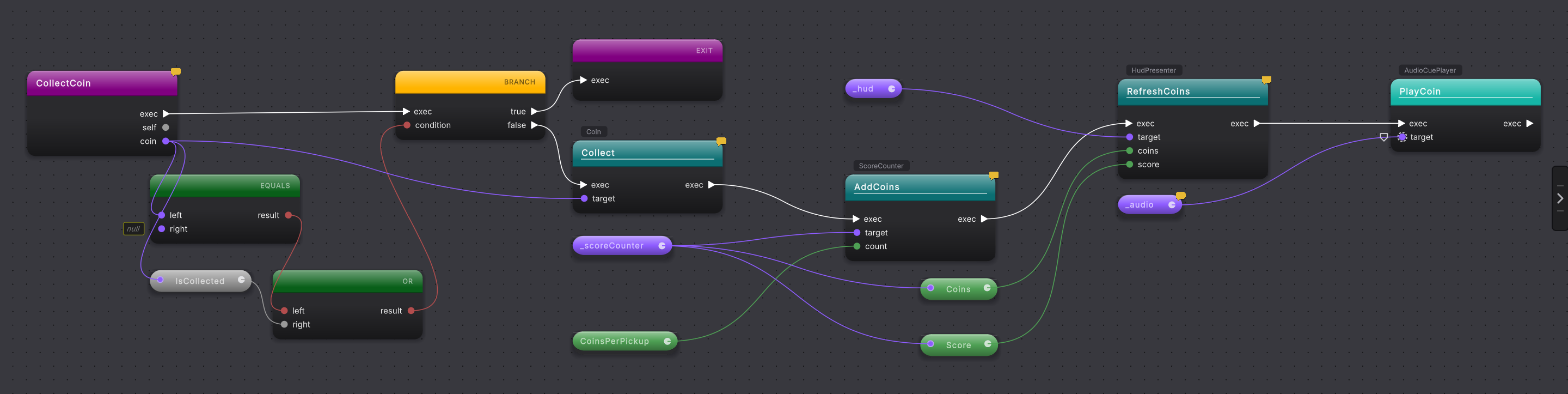
A call node asks some other piece of the game to do its job: play a sound, add to the score, refresh the HUD, collect a coin. Most methods you build are a few call nodes in a row on the white wire.
What it does
Section titled “What it does”A call is one teal node on the white exec wire. Its Target pin says which object does the work, its other input pins carry the values that object needs, and a result pin on the right hands back anything the method returns. An out argument is an output pin on the right too, beside the result, labeled with the variable it fills. The node’s header color tells you where the method lives: your own class, another class in the project, or code outside the project. When the game reaches the node, the call runs, and then the white wire carries on to the next node.
When to use it
Section titled “When to use it”Reach for a call node whenever something else in the game already knows how to do the thing you want. The player touches a coin: call Collect on the coin, AddCoins on the score counter, RefreshCoins on the HUD, and PlayCoin on the audio player. The player reaches the goal: call RefreshComplete on the HUD and PlayCompletion on the audio player. Each of those is one node you place and wire.
Clicking a method in the menu places the node that runs it. To pass the method itself as a value instead, for a pin that wants a method to run later such as an event or a callback, select the unwired call node and switch on Use as callback in the Call section of the right rail. The node becomes a method group; switch it off to make it a call again.
The same Call section says what the selected call runs. Method names it, and Choose method opens a list to swap it for another method, grouped under On this type, Inherited and Static, on types this file names. Hover a row in that list to see the full name of the class it belongs to, namespace included, such as UnityEngine.Assertions.Assert, followed by what the method does when its author wrote that down. A call that runs on a class rather than on an object, such as Assert.IsTrue, adds a Type row naming that class. Below it, Inputs lists each input, such as condition : bool, with the same box its pin has.
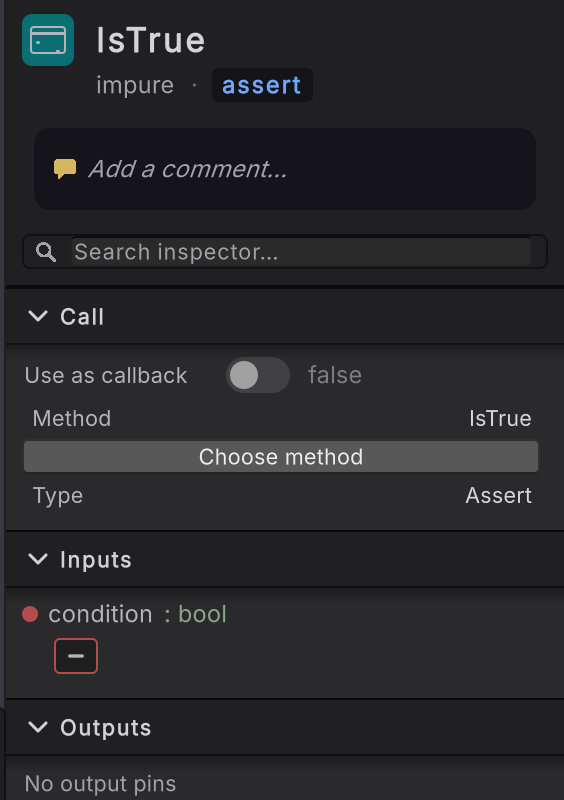
Assert.IsTrue(…), so it needs no Target pin.How to use it
Section titled “How to use it”Place and wire a method call
Start a method
Open the method you want to add a call to, or make a new one: click + on the Methods header in the left rail.
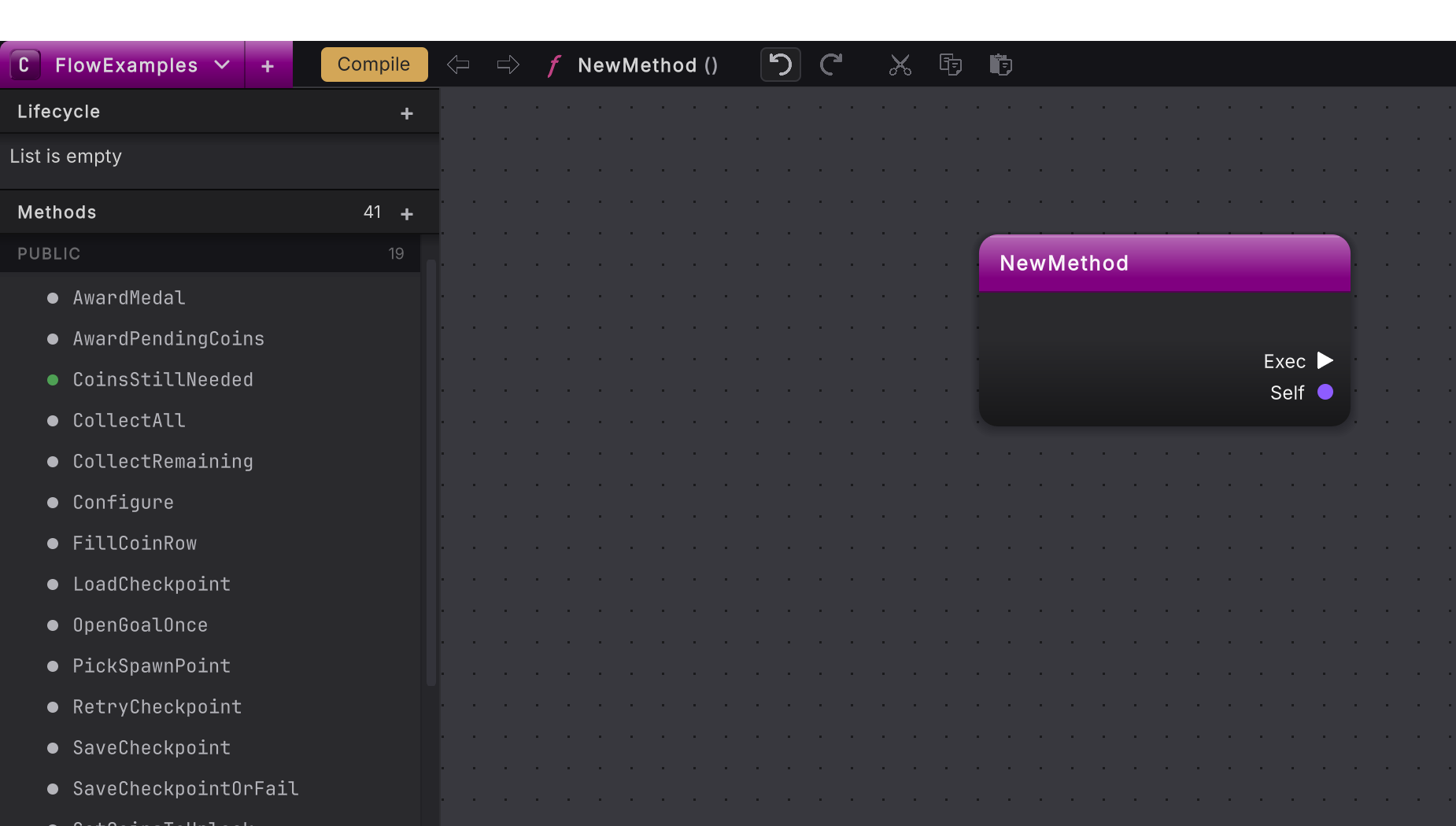
Open All actions
Right-click empty canvas to the right of the entry node. All actions opens at the click, with the cursor in Search.
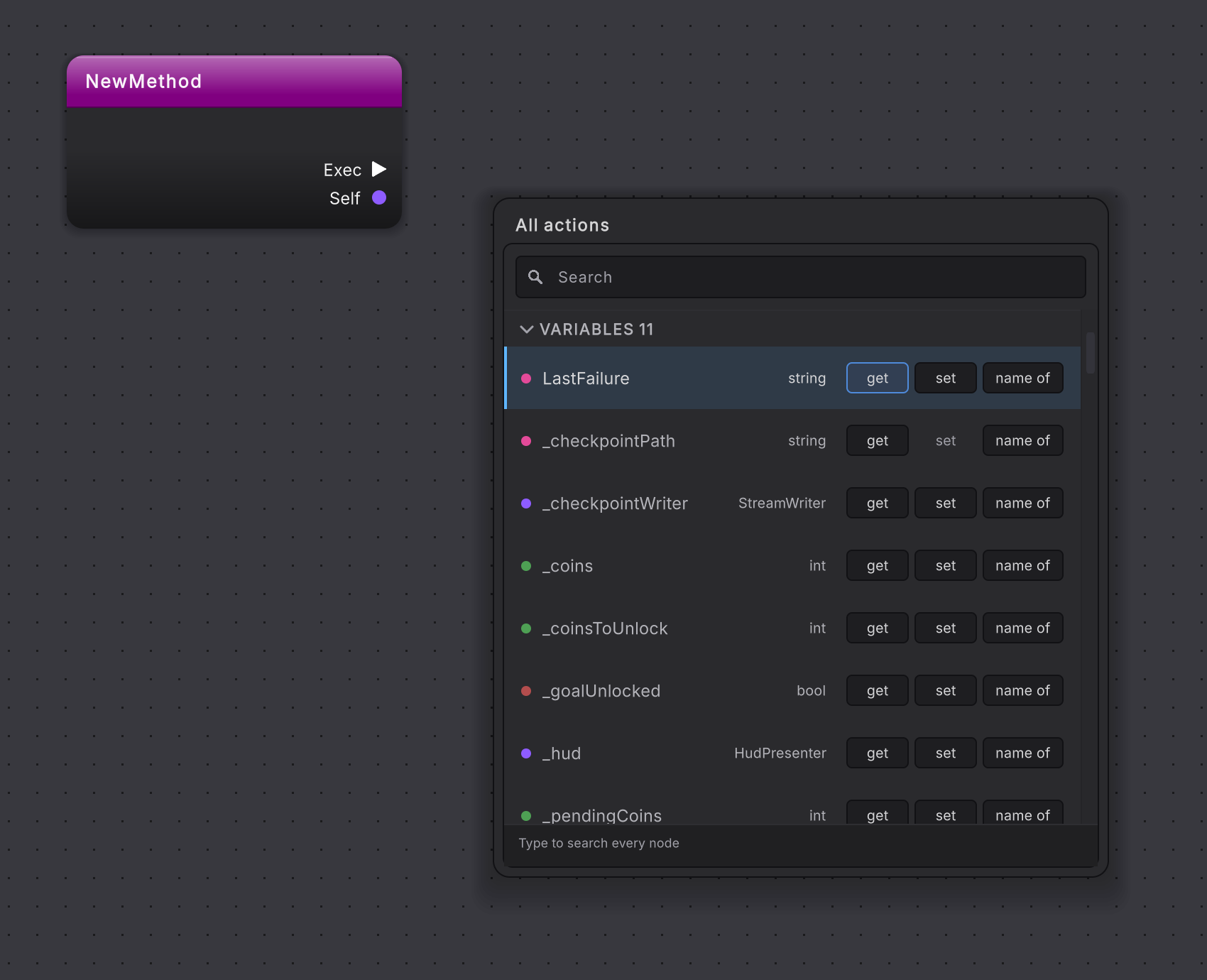
Search for the call
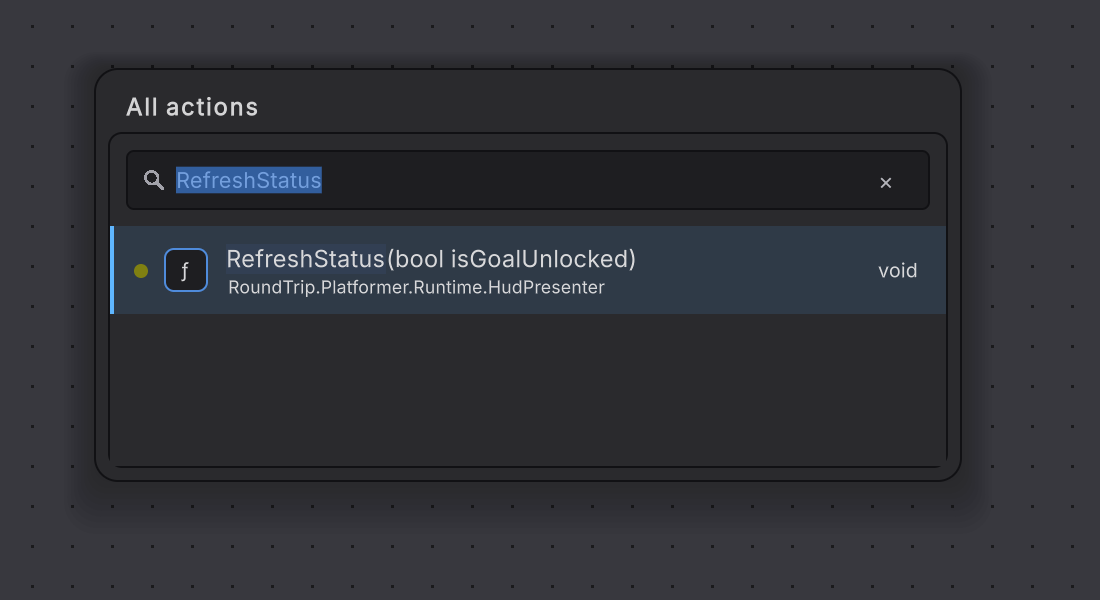
Type part of the method’s name, here
RefreshStatus, then click RefreshStatus(bool isGoalUnlocked) on HudPresenter. A teal call node appears.Supply the target
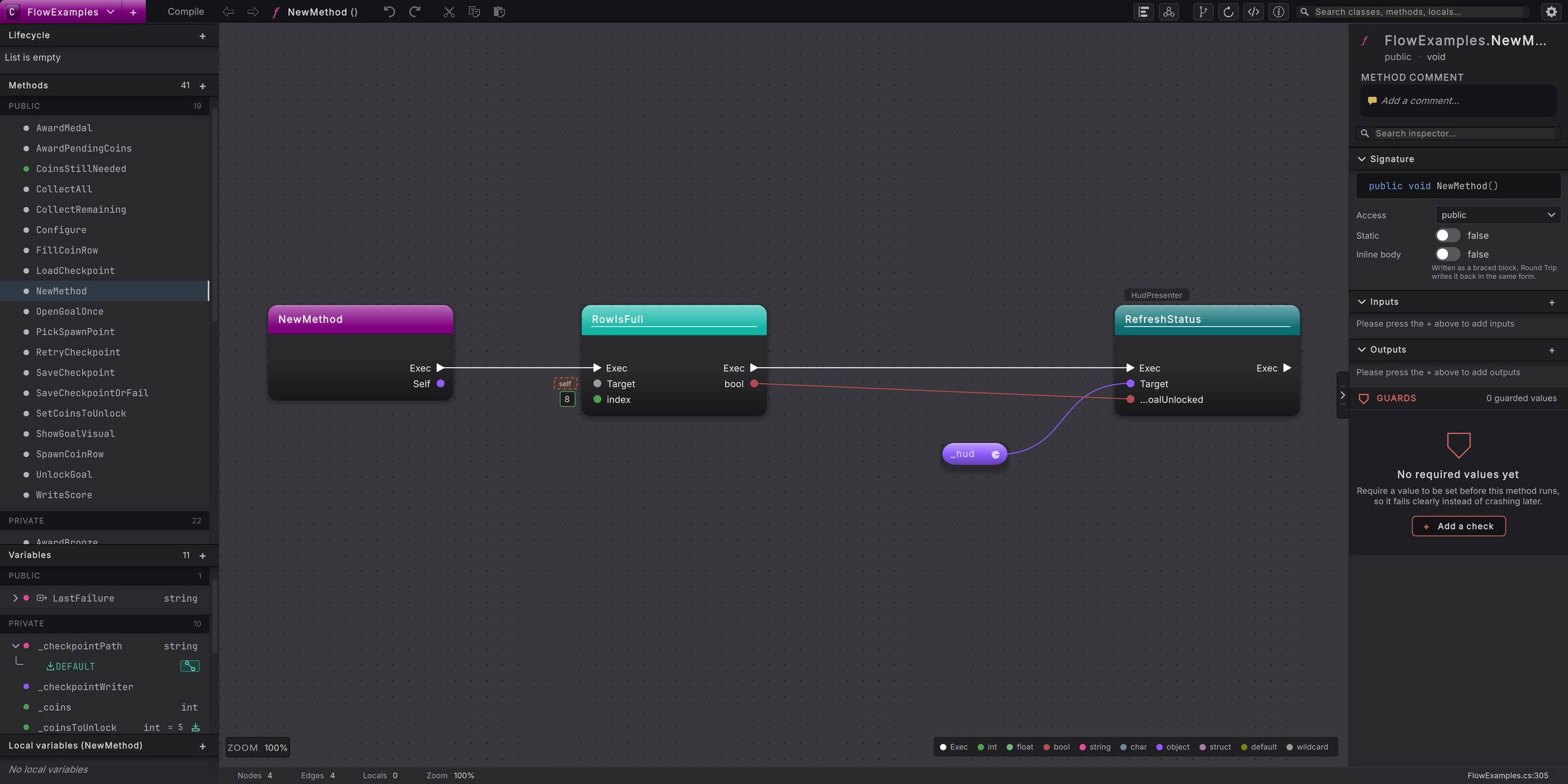
Fill the new node’s Target pin, the first data pin under its title. Drag the _hud row from the Variables list in the left rail onto empty canvas, choose get, then drag a wire from the new pill into Target.
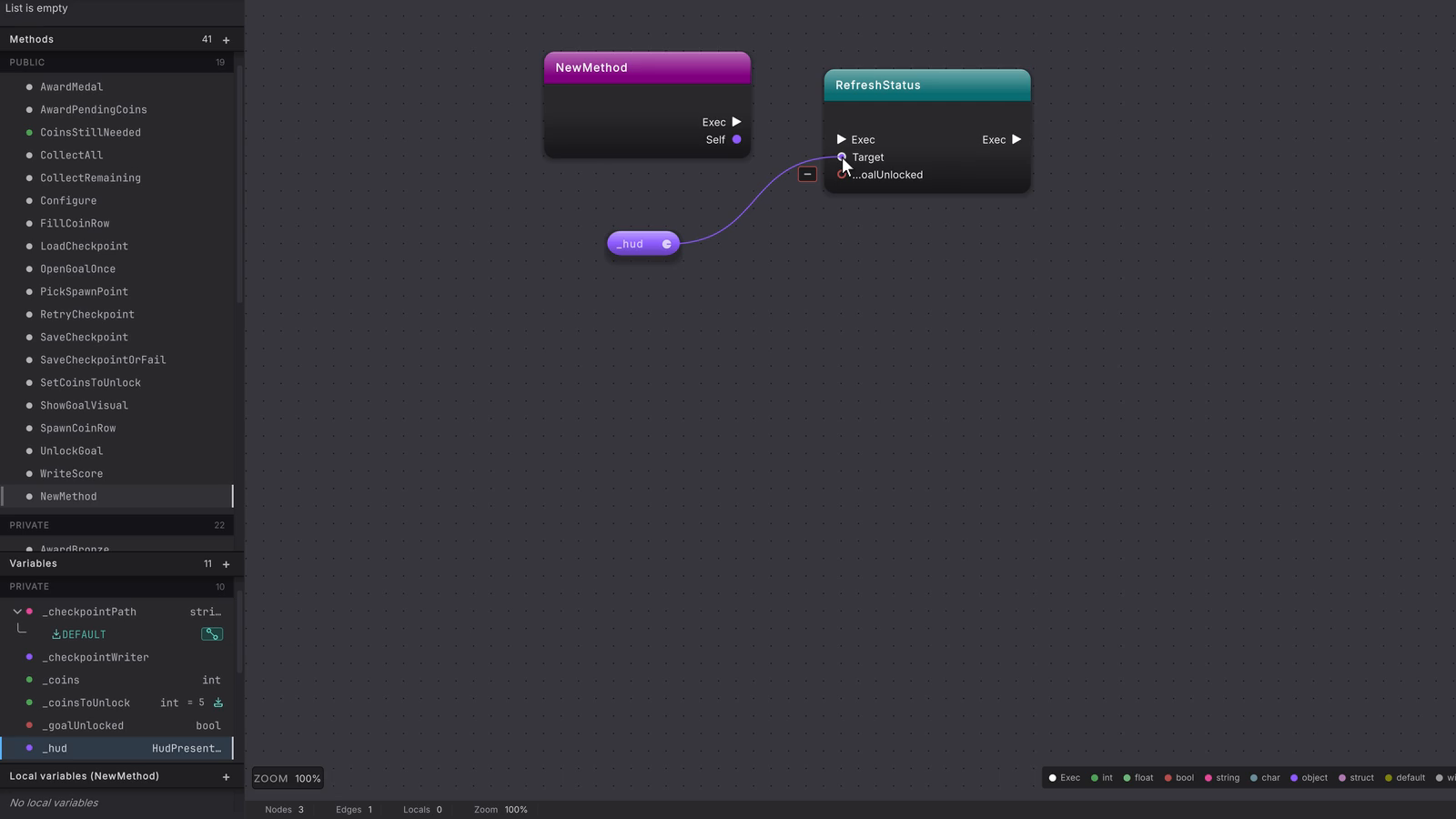 9 stepsFull size ↗
Connect the execution wire
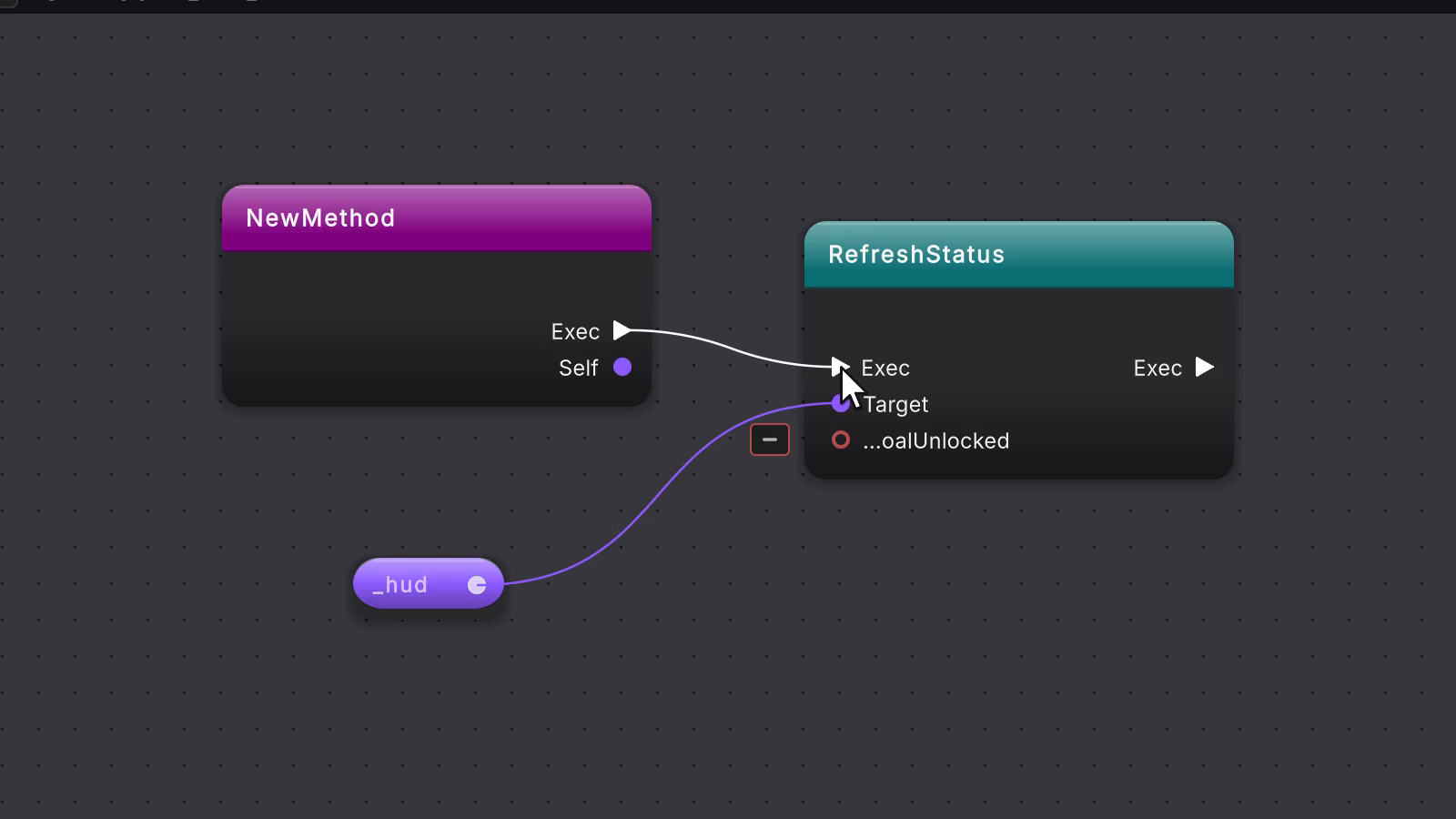
Drag from the entry node’s Exec pin (or the last node on the chain) to the new node’s left Exec pin. A white wire joins them.
 4 stepsFull size ↗
Fill the inputs
Fill each remaining input pin. Drag a colored wire into it from a pill or another node’s output, or click the empty area beside an unwired pin and type a value such as
8ortrue. Here RowIsFull takes8for index.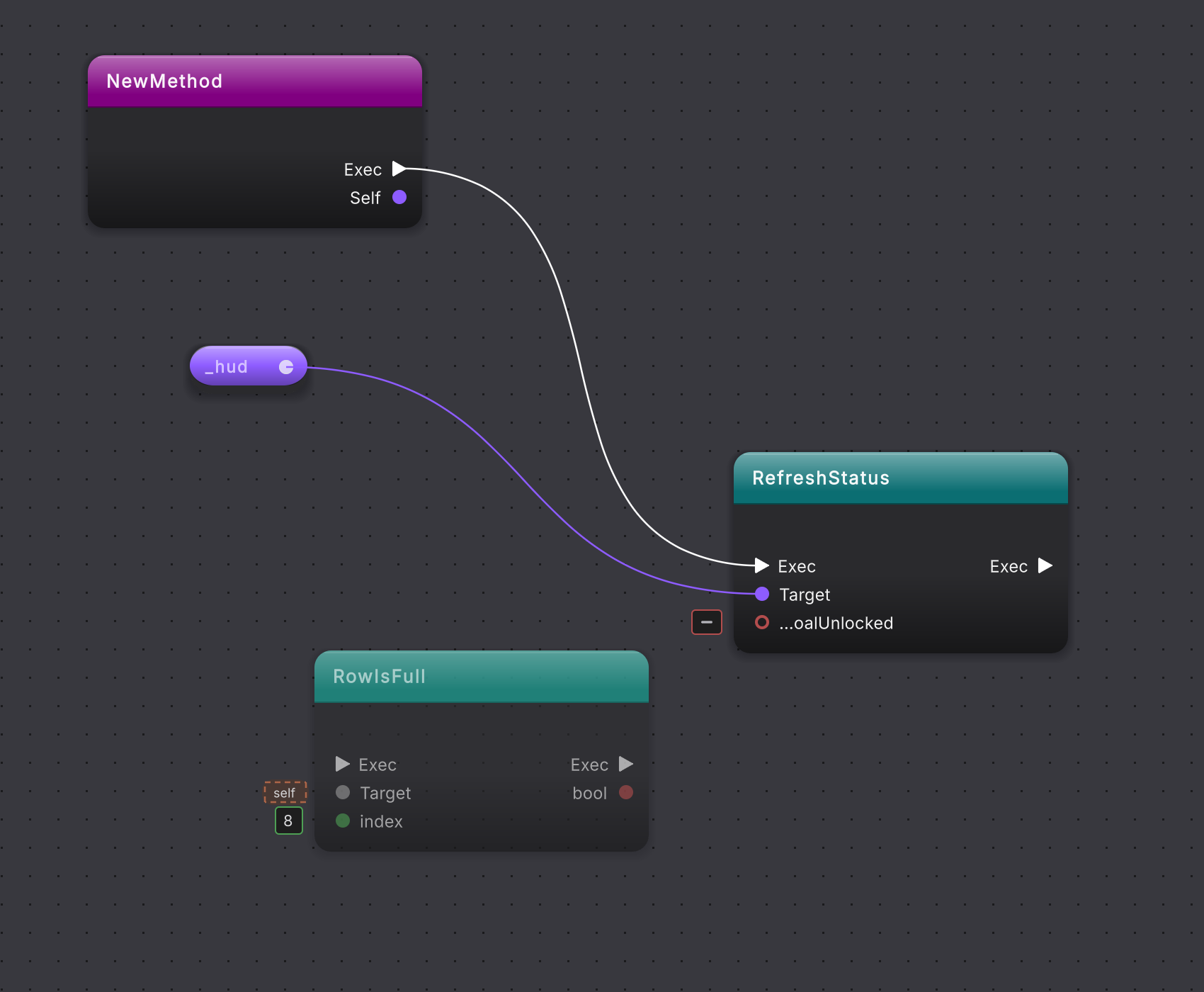
Use the result
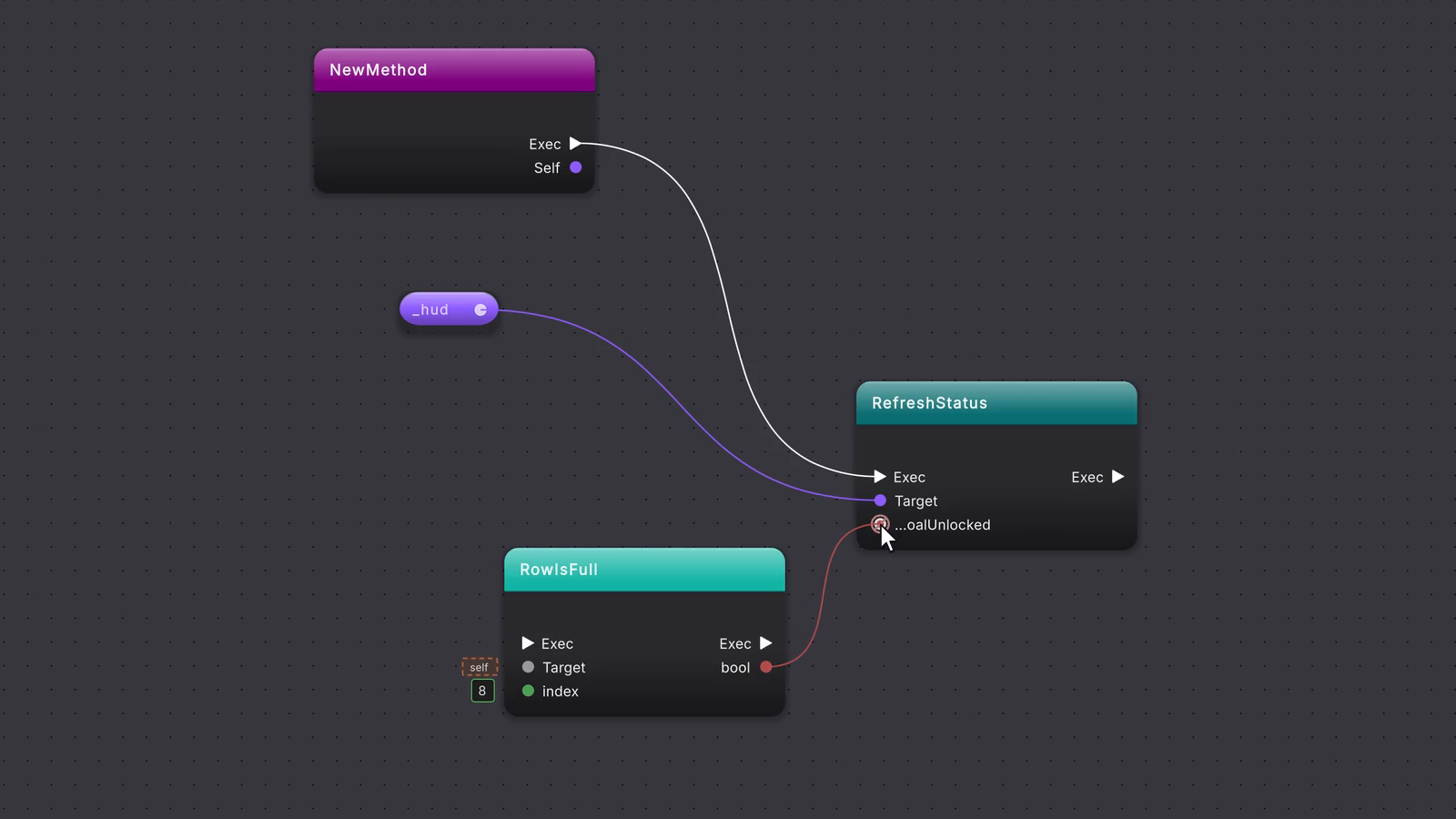
If the node has a result pin on its right, drag from it to the pin that should use the answer.
 4 stepsFull size ↗
Compile
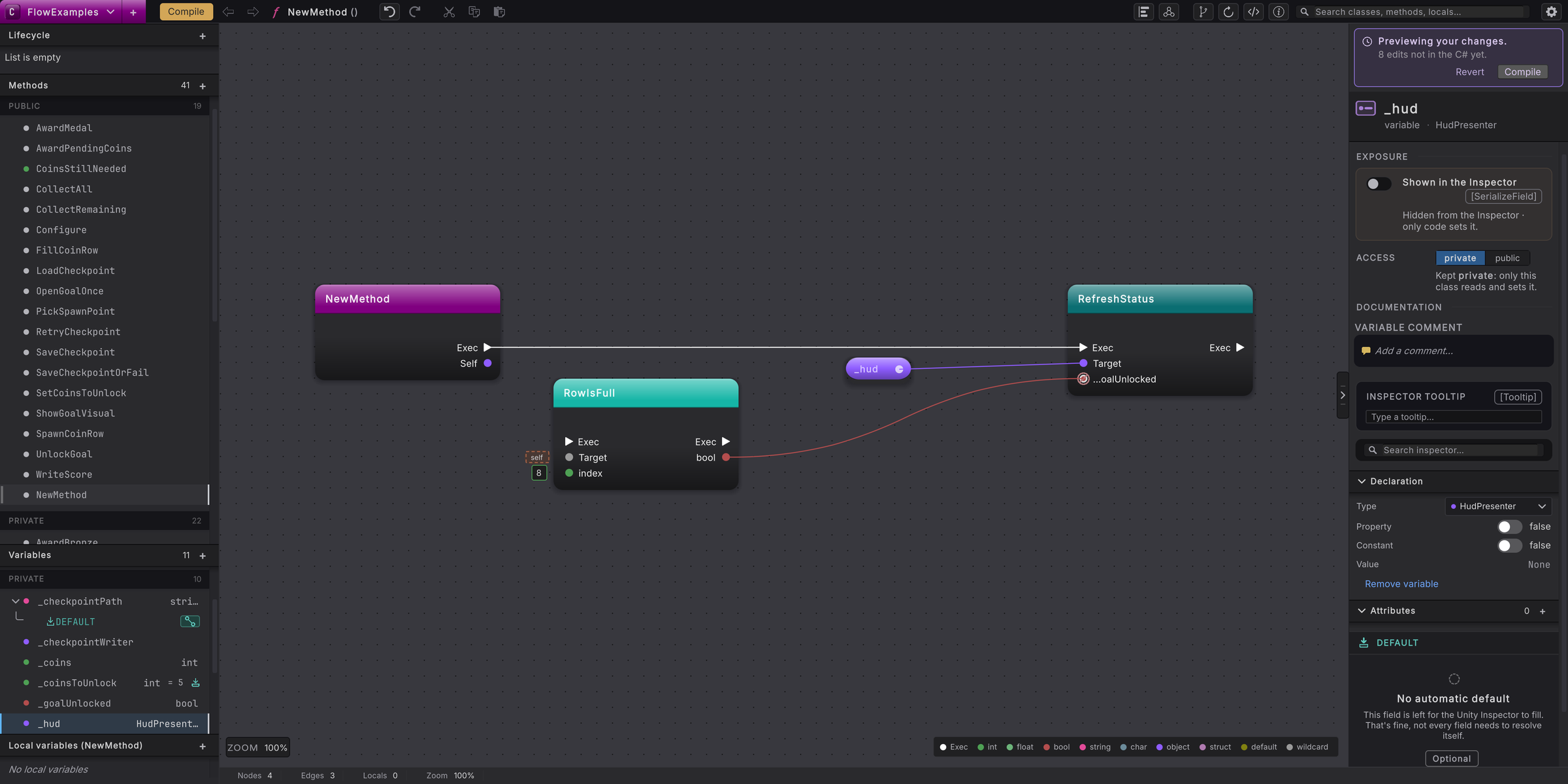
Press Compile in the toolbar.
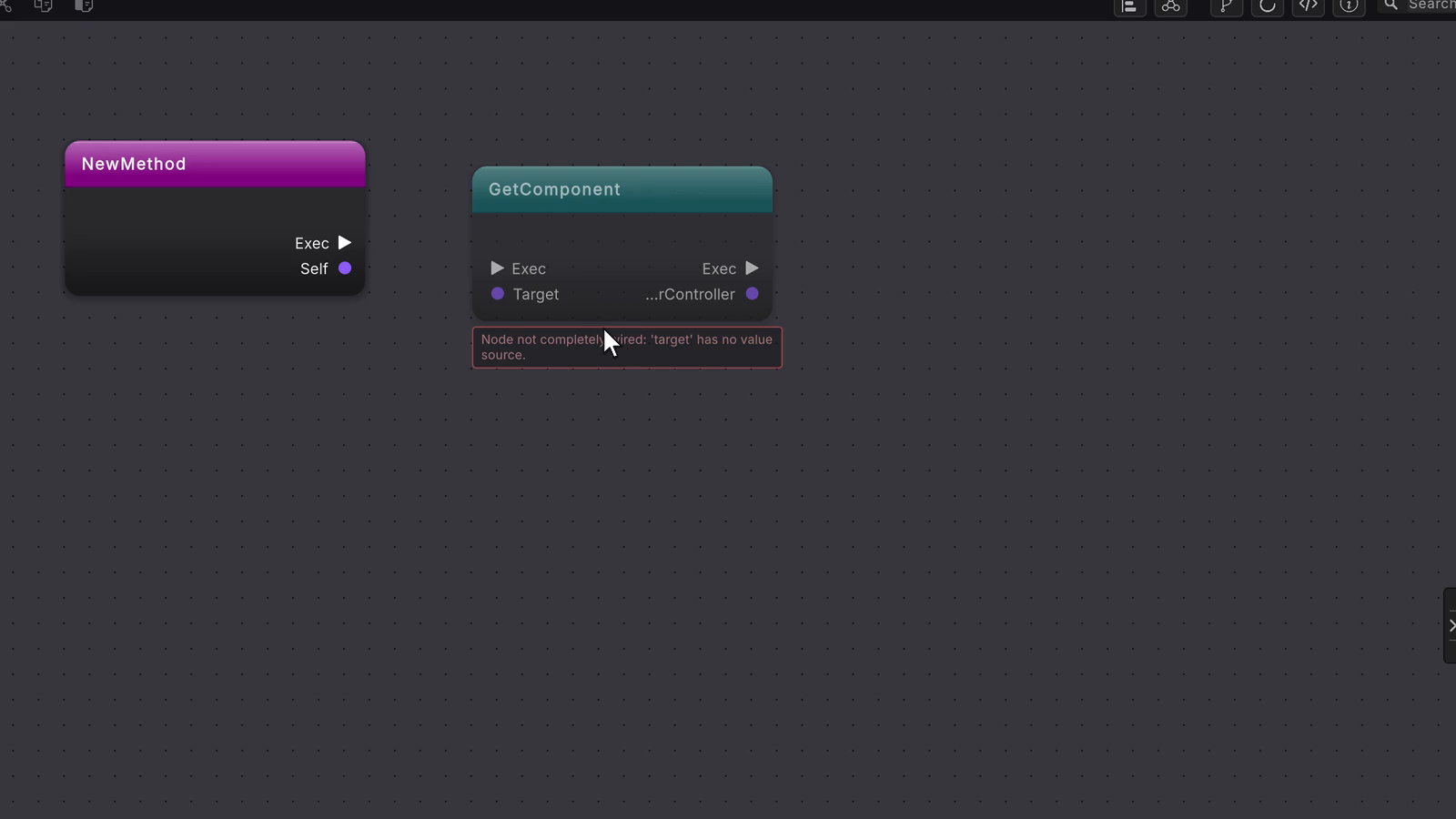
There is a faster route when you already have the object on the canvas. Drag from its output pin, such as the purple pin of a _hud pill, and let go on empty canvas. A menu of that object’s members opens with a filter box. Click a method’s row under methods and the call node appears with its Target already wired from the pin you dragged. When that pin belongs to a node that runs, such as another call’s result, and nothing follows that node on the white wire yet, the new call is also wired to run right after it. A generic method such as GetComponent<T> is wired the same way once you choose its type. If the node’s white Exec output already leads somewhere, the call lands unwired so the order you built stays as it was.
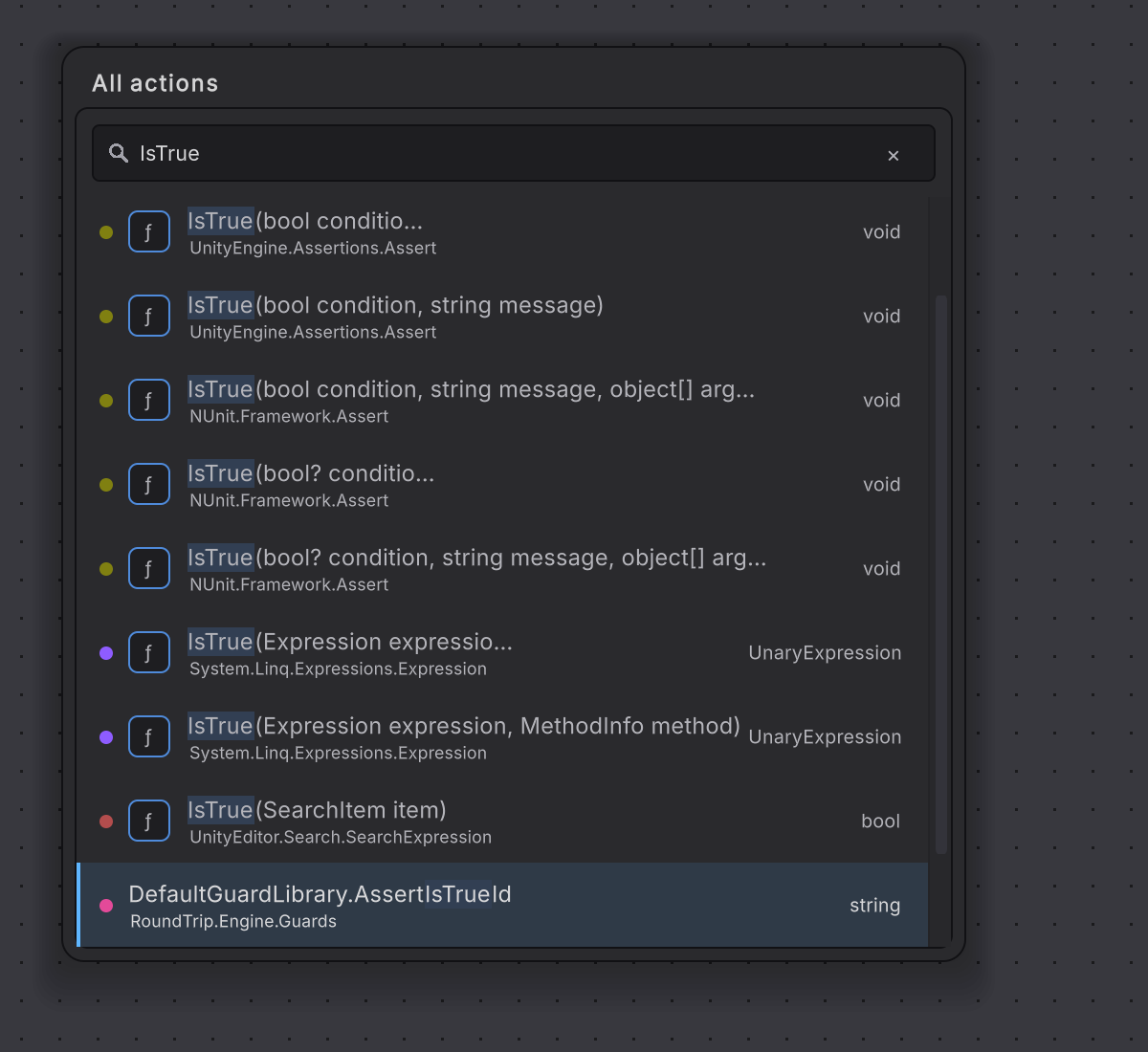
When the call should run right after a node that is already on the canvas, start from that node’s white Exec output instead. Drag it onto empty canvas and let go, then type part of the method’s name, such as IsTrue. The menu searches calls the same way All actions does, leaving out calls that only return a value, and the node you pick lands already wired to the pin you dragged.
Compare call targets
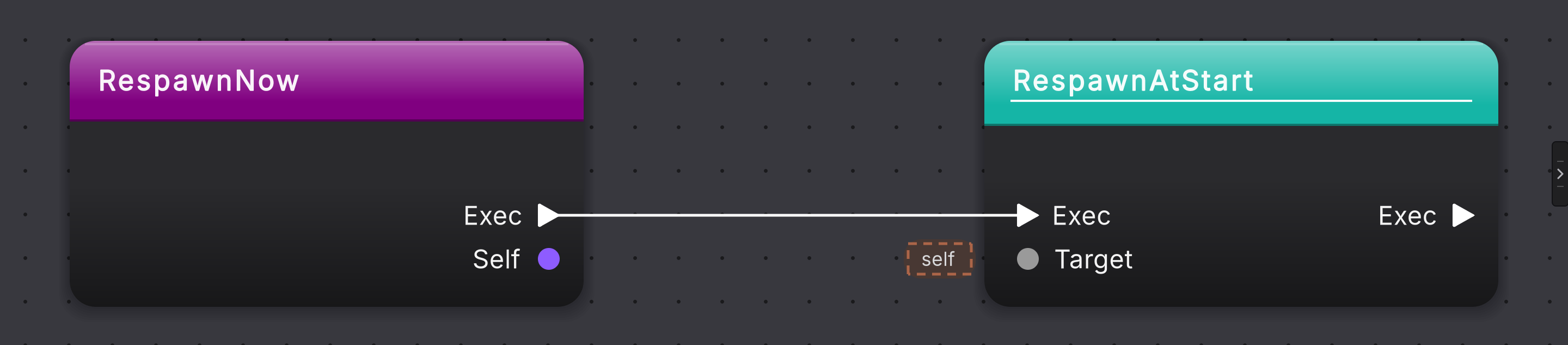
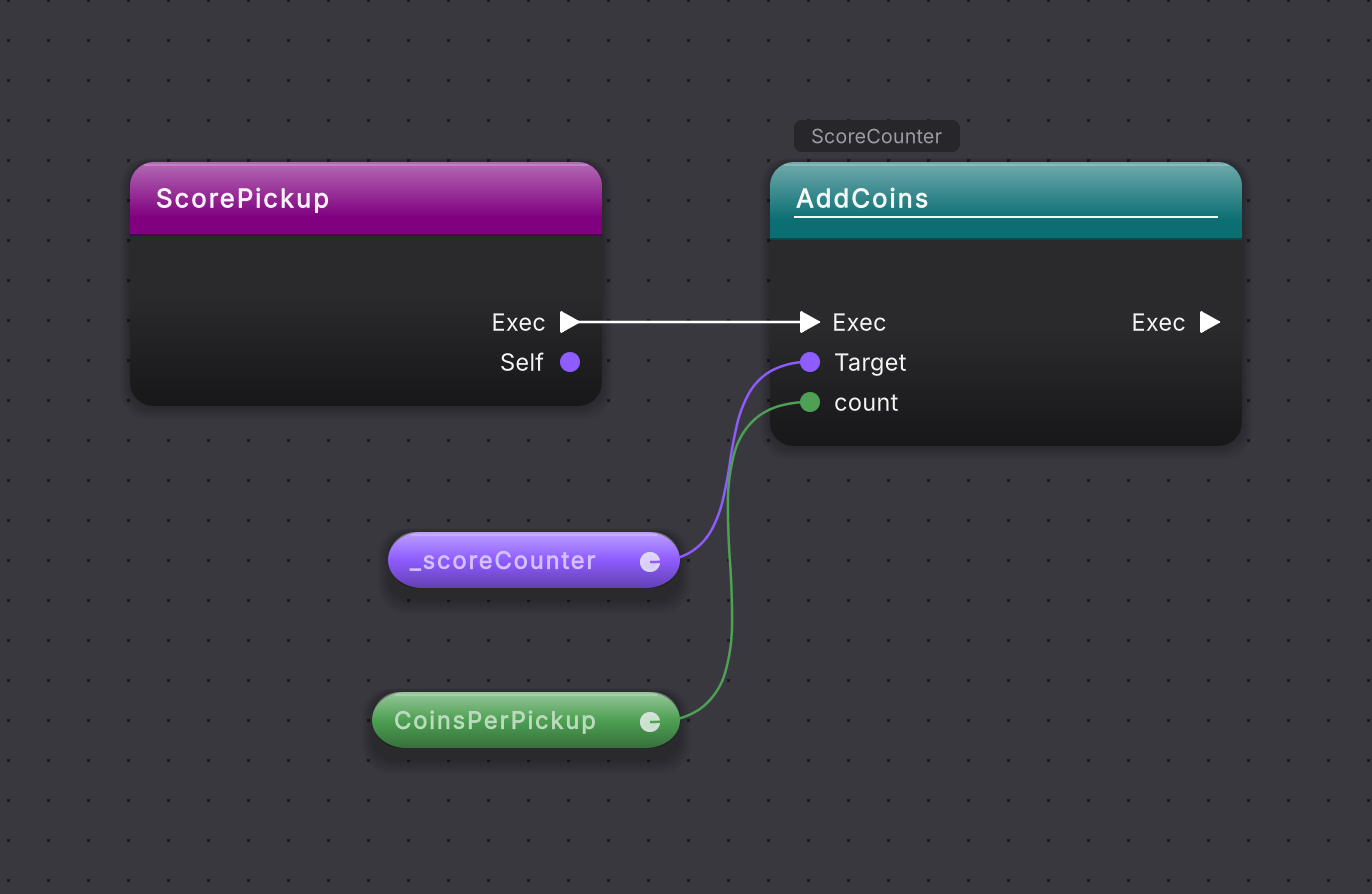
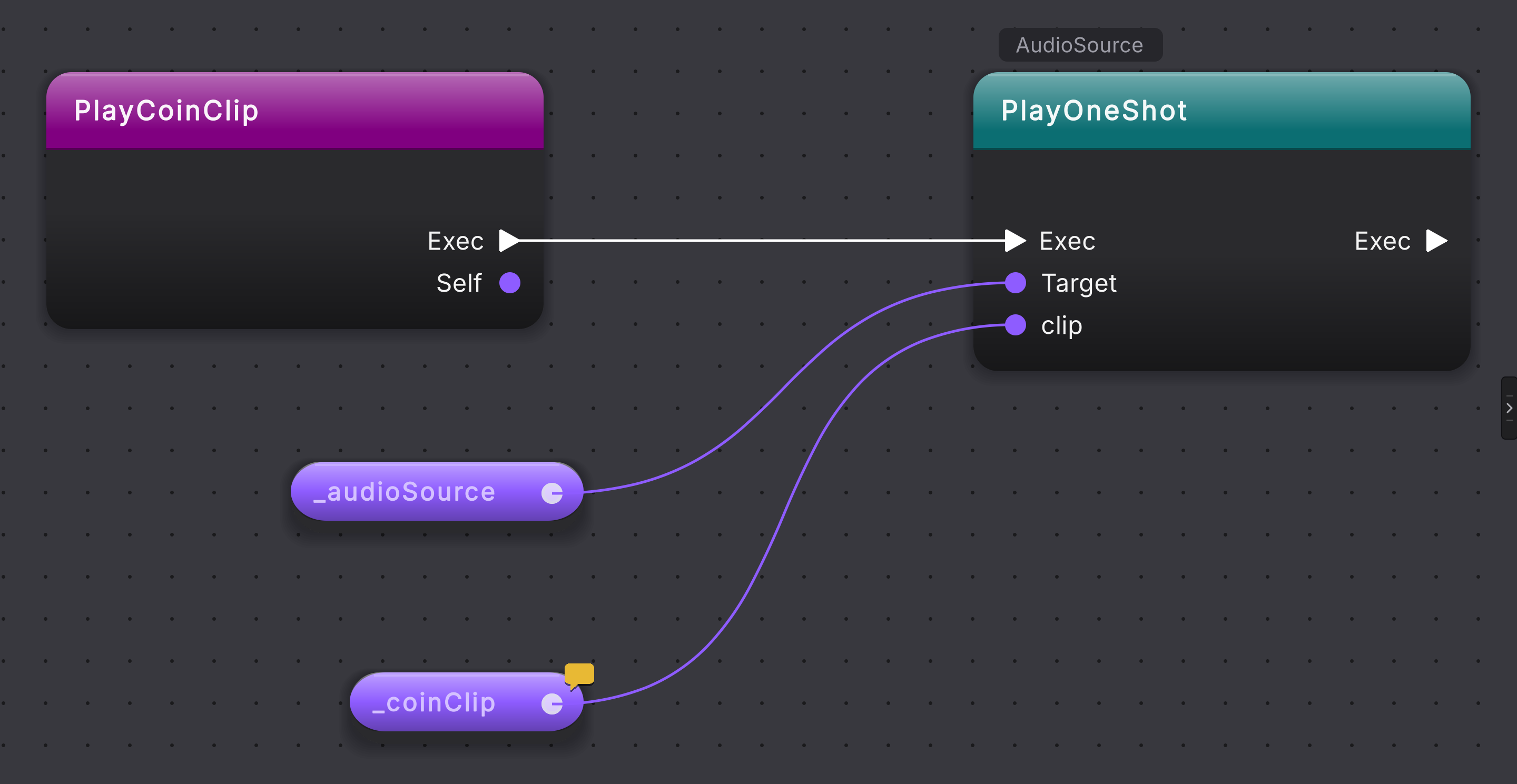
Section titled “Compare call targets”These are separate sample methods, not a sequence of edits. Compare what supplies Target before filling the call’s other inputs.
Read the target before the arguments
Select a screenshot to enlarge it.
When you read a value off a call’s answer, it stays one pill. Drag the call’s result pin onto empty canvas, pick a member such as normal, then y inside it, and the canvas shows one GET pill titled y with normal in the small line above it, wired from the call’s result pin. A constructor that hands its work to another constructor of the same or base class shows that hand-off as a node titled with the called type, with one input per argument.
What it writes
Section titled “What it writes”If you also work in C#, this is what is written into the script. These four calls come from CollectCoin on PlayerController in the Platformer sample, shown here in a short AwardCoin helper that takes the coin as an input:
When it goes wrong
Section titled “When it goes wrong”When it goes wrong
| Symptom | Check | Fix |
|---|---|---|
| Compile leaves the call pending | Look on the call node for a hollow pin: an empty target, an argument, or an unchosen type. | Wire or type a value into every hollow pin, then press Compile again. |
| The method is missing from the menu | Count the letters in search, and read the last line of the list: keep typing to search every method, or N more, keep typing. | Type at least three letters of the name, then more of it until the method is among the forty rows. An obsolete method is listed after every other match, and one hidden from IntelliSense only when Show hidden members is on in Preferences. |
| The call node is missing a pin you expected, such as message | Select the node and read Method in the right rail: each overload of a method is a different call with its own parameters. | Delete the node and pick the overload whose row lists the parameter, such as UnityEngine.Assertions.Assert.IsTrue(bool condition, string message). |
| Use as callback is grayed out | Hover it and read the reason: the node still has wires. | Break the node's wires, switch the toggle, then wire the method group where it is needed. A generic method has no toggle, because a callback cannot name its type yet. |