
Guard rules
Choose project-wide guard defaults, or teach Round Trip your team's C# check and warning style.
On this page
One teammate protects a missing HUD with a Unity Console warning. Another uses the project’s logger. Guard rules tell Round Trip which checks to recognize and which style to offer when you add a guard. Everyone sharing the project gets the same rules.
To add a check to a method or node, use Guards. You can use the supplied rules without writing C# or editing these settings.
Find your path
Section titled “Find your path”- Choose a shared default: reuse a supplied pattern, without writing code.
- Add your own rule: a copyable C# template recipe for programmers.
- Check the result: preview, Compile, and read the saved check back.
Where the rules live
Section titled “Where the rules live”Open Edit > Project Settings, select Round Trip, and find Guard recognition. Tools > Round Trip > Project Settings opens the same page. The toolbar gear opens personal Preferences, where guard rules do not live.
| Setting | Use it for |
|---|---|
| Guard recognition Enabled | Enable recognition through the project’s pattern library. Turning it off leaves the C# in your scripts untouched. |
| Guard Patterns | The list of recognized templates. Each has an Id used by defaults, a Name shown to users, and an Enabled switch. |
| Guard Default Method Field Property | Default pattern and parameters for method-level requirements on fields and properties, such as the HUD. |
| Guard Default Method Parameter | Default pattern for guards attached to a method’s parameter pins. |
| Guard Default Call Argument | Default pattern for guards attached to a call’s argument pins. |
| Guard Default Non Void Return | A default return expression for a method that gives back a value. Leave it empty to choose per method; one value rarely suits every return type. |
A pattern is a reusable recipe for a check. A default selects a recipe and fills its starting values. A guard on one method is a particular use of that recipe. Changing the library does not add checks everywhere or rewrite existing scripts.
Choose a shared default
Section titled “Choose a shared default”For a HUD requirement, start with a runtime check that warns and skips. The supplied Unity Debug.LogWarning null guard writes directly to Unity’s Console; Round Trip logger null guard uses the class’s _logger, which must be set up to show the warning.
Choose a shared guard default
Find the pattern ID
In Guard Patterns, find the enabled pattern you want. Copy its Id, not its Name. For the Unity Console pattern, the supplied ID is
unity.debug-log-warning-null-guard.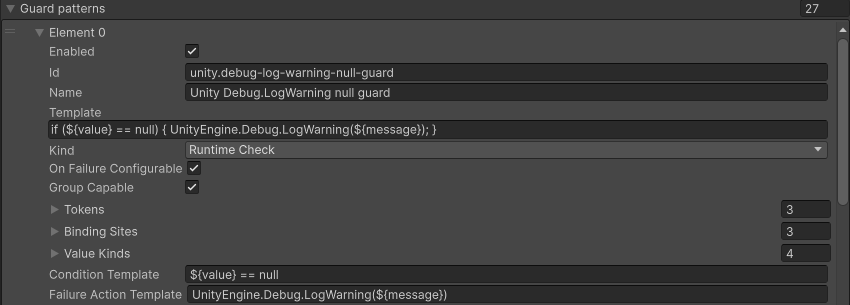
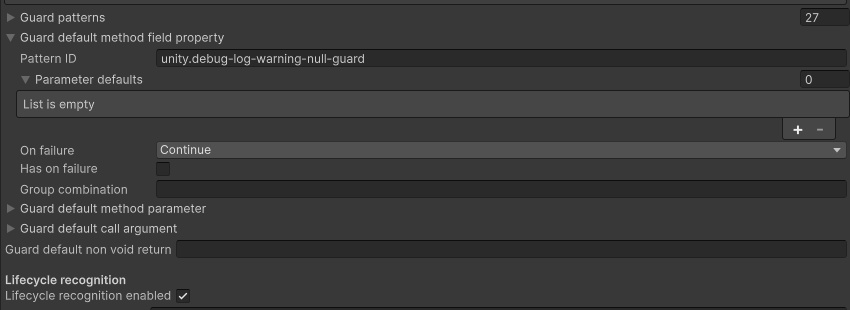
Choose the shared pattern
Expand Guard Default Method Field Property. Set Pattern Id to that ID.
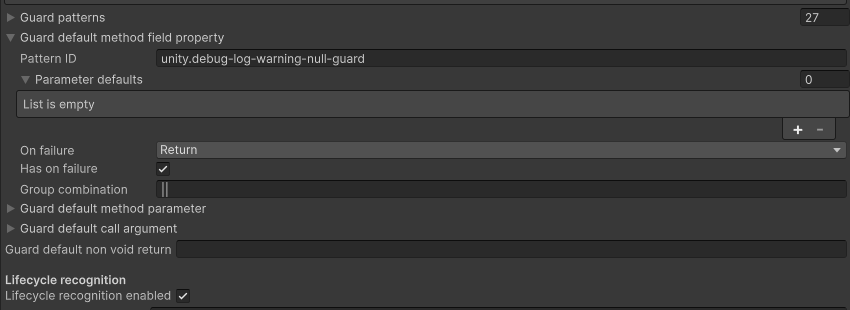
Return after the warning
Enable Has On Failure and set On Failure to Return.
Set the default message
In Parameter Defaults, add or edit the entry whose Name is
message. Set Value to"These values are required: ${valueNames}", including the quotation marks.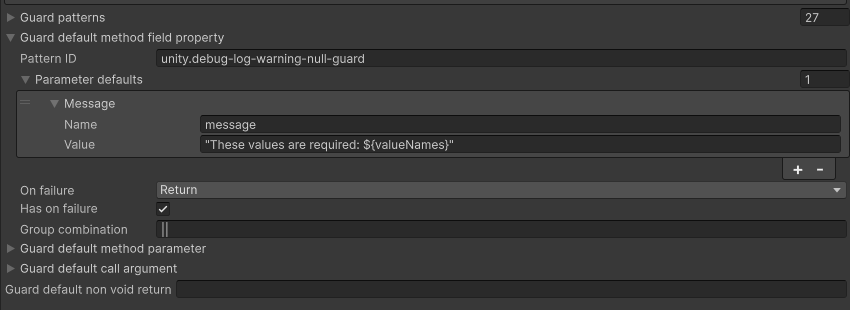
Inspect the shared default
Open a method and add a guard from its GUARDS card. Expand Advanced · show code to check the chosen pattern and C# before you Compile. See Check the result.
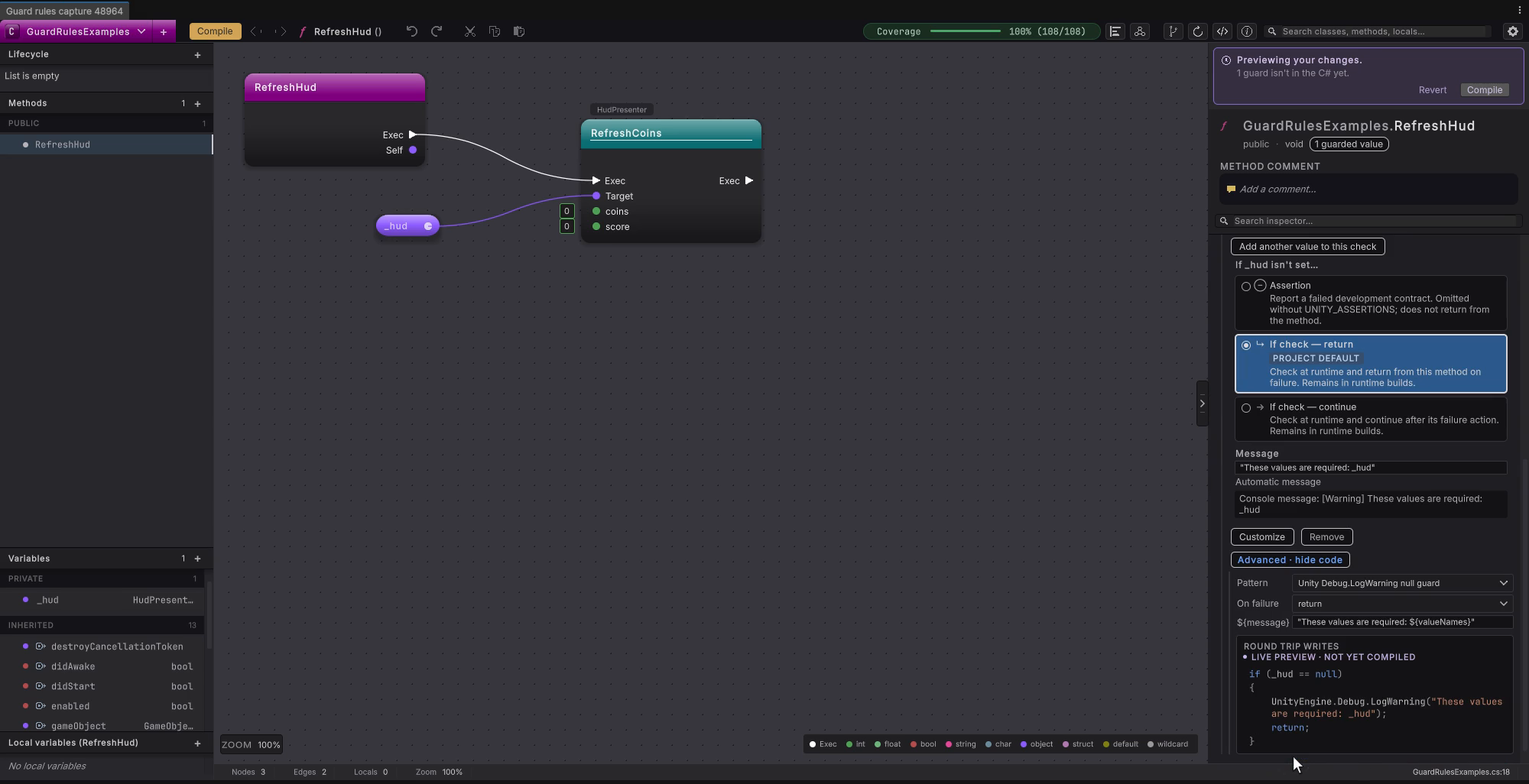 4 stepsFull size ↗
Add your own rule
Section titled “Add your own rule”This section needs C#. Skip it if the supplied warning styles do what you need.
The recipe below makes a method-level missing-reference check that prefixes Unity Console warnings with [Required]. It checks fields and properties and can combine several requirements. Start with this narrow shape before adapting it to a project logger.
Add the Team required reference rule
Add the pattern
Under Guard Patterns, press + and expand the new element. Unity may copy the last element, so replace its ID and every setting below before using it. Keep the existing rules enabled while setting up the new one.
Setting Value for this recipe Enabled On Id team.required-reference(unique in this project)Name Team required referenceKind Runtime Check ( RuntimeCheck)On Failure Configurable On Group Capable On Set the three template settings exactly as follows. Failure Action Template has no trailing semicolon.
Setting Paste this value Template if (${value} == null) { UnityEngine.Debug.LogWarning("[Required] " + ${message}); }Condition Template ${value} == nullFailure Action Template UnityEngine.Debug.LogWarning("[Required] " + ${message})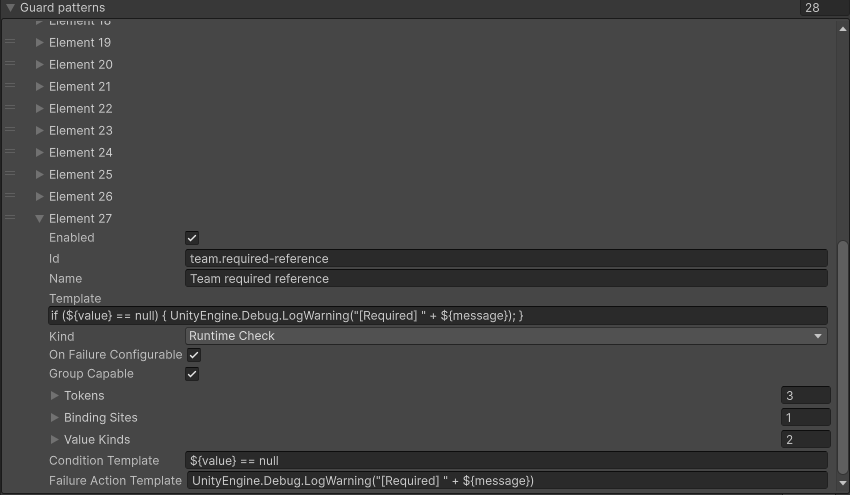
Limit where it applies
Expand Binding Sites and Value Kinds, then add the entries below. The recipe applies to a method-level check on a field or property value.
Setting Value for this recipe Binding Sites One entry: Method Guard ( MethodGuard)Value Kinds Two entries: Field and Property 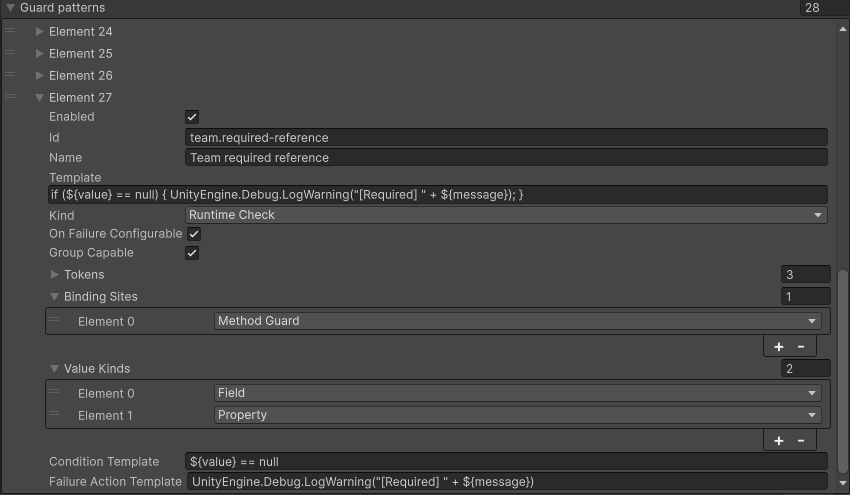
Declare the tokens
Under Tokens, replace the copied entries with these three. Enter the names exactly as shown, without the
${…}wrapper.Name Role Filled by valueAuto Bound ( AutoBound)Round Trip, from the field or property you select. messageParameter The project default or this guard’s message. returnParameter The chosen return value, when a skipped method gives one back. A voidmethod writesreturn;.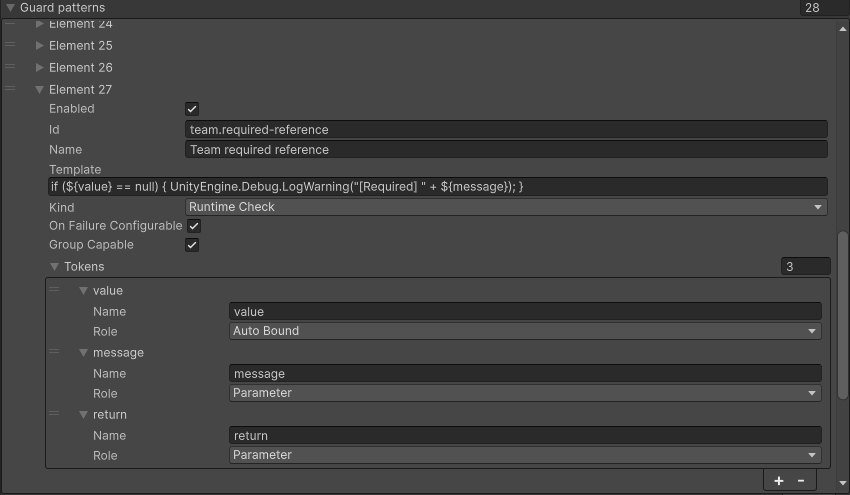
Select the rule as a default
In Guard Default Method Field Property, set Pattern Id to
team.required-reference. Enable Has On Failure, choose Return, and set Group Combination to||.In Parameter Defaults, use one entry: Name
message, Value"Missing: ${valueNames}", including quotes.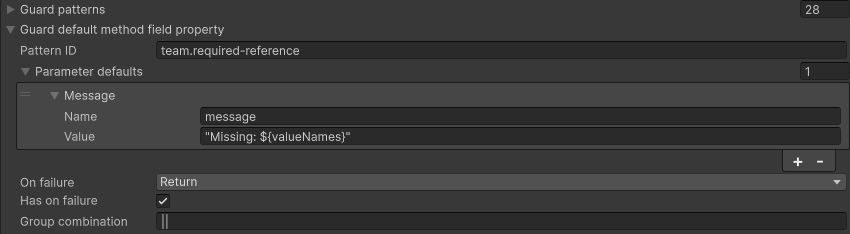
Check the result
Section titled “Check the result”Check the custom guard
Require the HUD
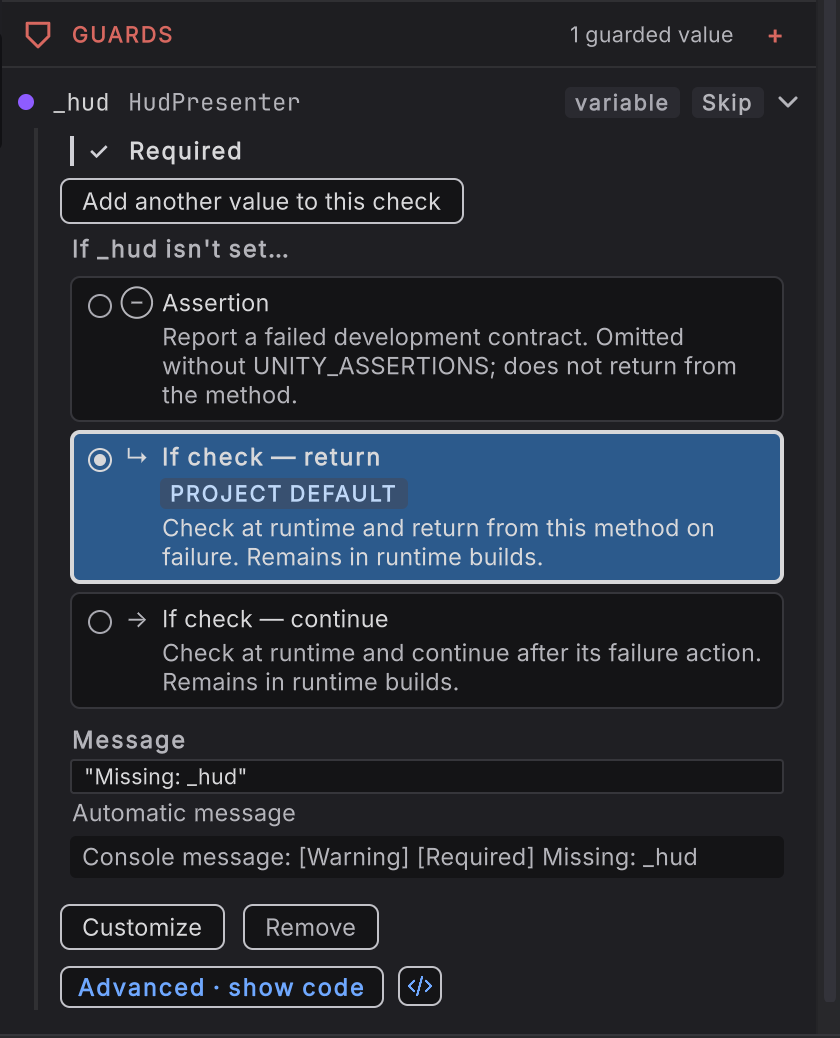
Use a test method that updates a _hud variable. Select the method in the left rail, open GUARDS, press Add a check, and require _hud. Choose the If check option that returns on failure to warn and skip the rest of this method.
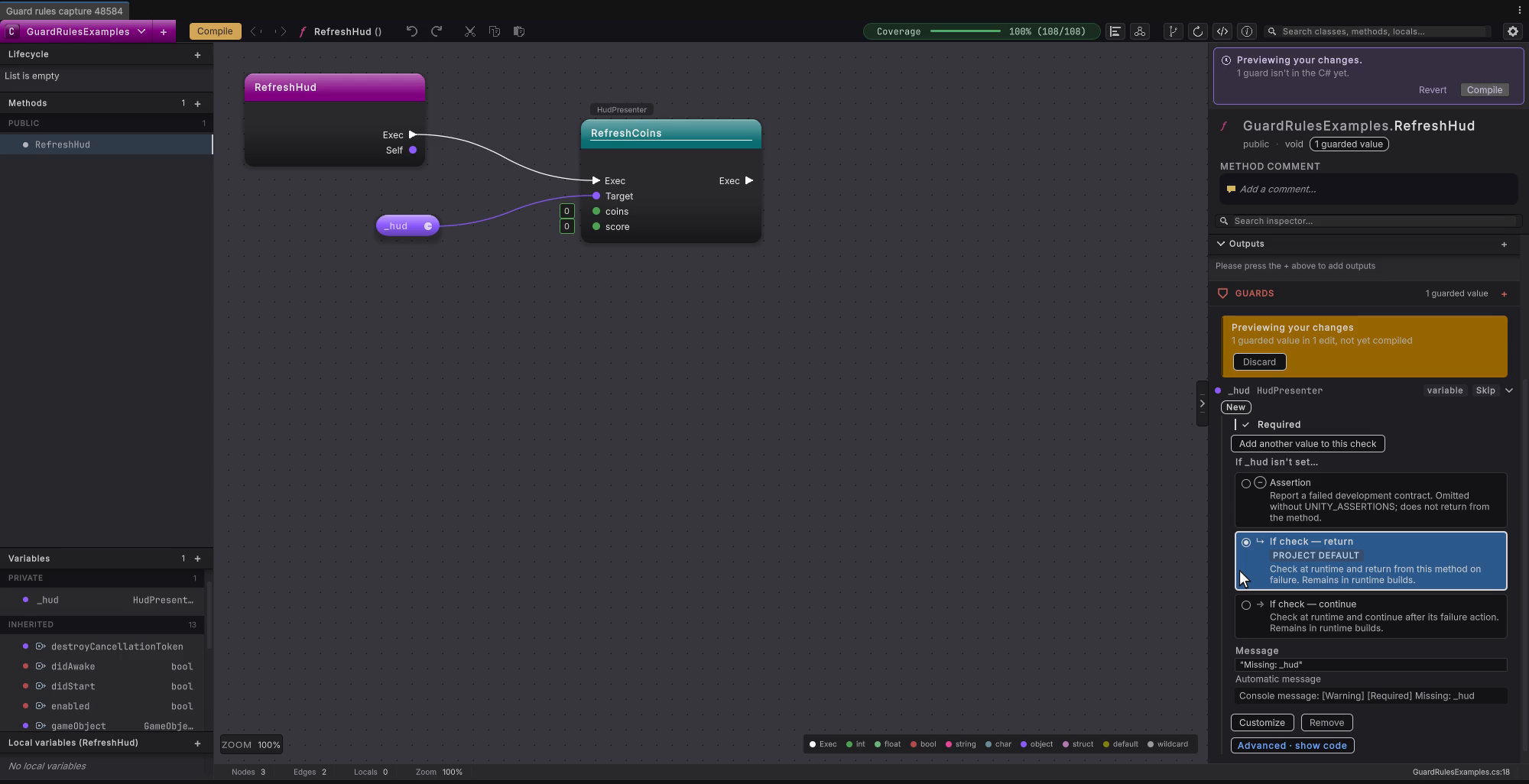 5 stepsFull size ↗
Read the custom preview
Expand the row and Advanced · show code. Confirm pattern is Team required reference. If the check already exists, use Reset to default to stage the project’s current default first.
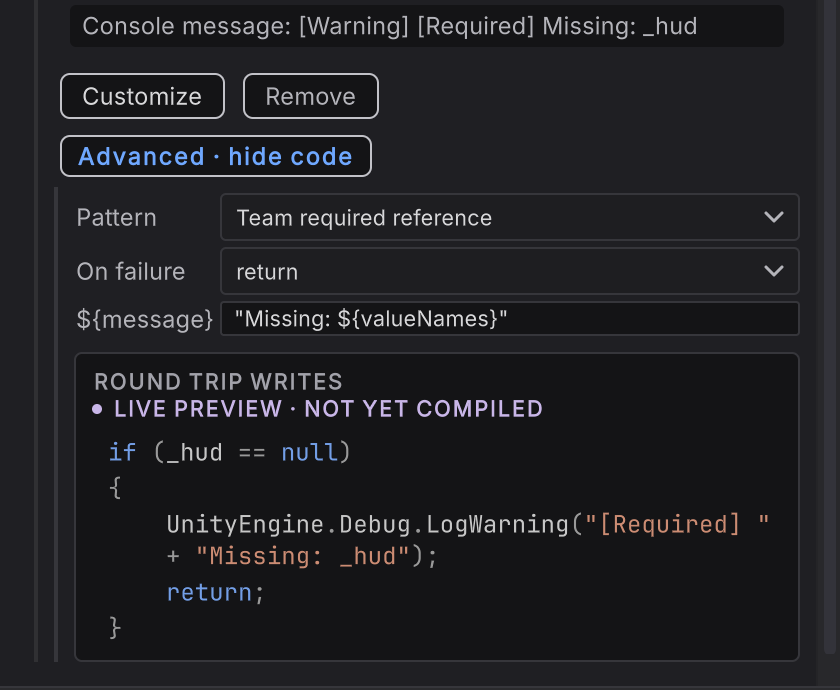
Compile the guard
Press Compile, then open the check in source from its guard row. Confirm the warning and
returnwere saved.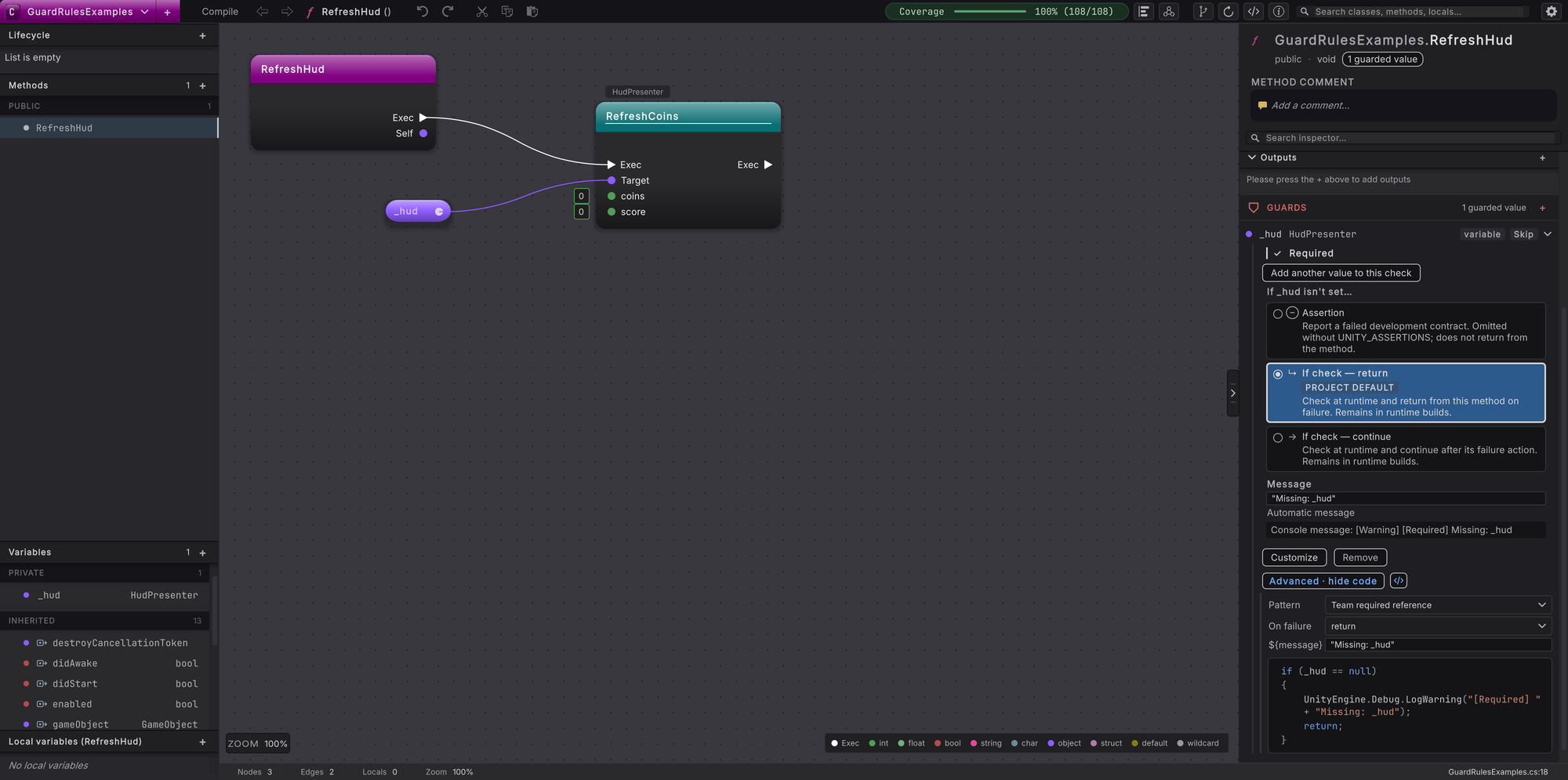
Check the missing and assigned reference
In a test scene, clear the component’s _hud reference and trigger the method in Play mode. Unity’s Console should show
[Required] Missing: _hud, and the HUD call should be skipped. Restore the reference and trigger it again: the HUD call should run.
Reopen the saved check
Reopen the method. The saved check should be recognized in GUARDS again. Share the settings asset and the script through version control when you keep the change.
Recognition limits and common fixes
Section titled “Recognition limits and common fixes”- If your pattern is absent from a picker, check Enabled and Binding Sites. A rule for method requirements needs Method Guard; Value Kinds declares which values it recognizes.
- If the preview needs a parameter, declare that token and supply a value. If it says Needs a return, choose a return value compatible with this method’s return type.
- If a saved check stays as canvas nodes, compare its condition and action with the rule. Custom templates match supported guard shapes; they do not turn arbitrary C# into a guard. Runtime failure bodies support a logging call, an early return, a logging call followed by a return, or a throw. A custom logging method must have a name starting with
Logto be a recognition candidate. - To stop using a supplied pattern, switch its Enabled off instead of deleting it. Round Trip restores missing supplied IDs when it initializes settings. Update any defaults pointing to a disabled pattern.
- Guards: use method requirements and node-level null handling.
- Settings and preferences: shared project behavior versus personal canvas settings.
- Preview and Compile: save the guard draft into your script.