
Fields and defaults
Add fields, understand property storage, and author declaration defaults from the rail.
On this page
A jump force belongs with the level rules, not hidden inside a movement method. A named field gives the value one home and one default.
The problem
Section titled “The problem”LevelRules groups progression and player tuning fields. Each declaration has a type, a source order, optional attributes, and an initializer that Unity can expose or other code can read.
When to reach for it
Section titled “When to reach for it”Use a field for state the class owns. Use a declaration initializer when a value type or reference should start with a known value. Use a property when callers need a controlled read or write surface.
The Default card distinguishes three useful origins. From your code means Round Trip recognized an existing source default. Edited · draft means the rail holds a pending change. CUSTOMIZED appears while an amend flow differs from the recognized source shape.
See it
Section titled “See it”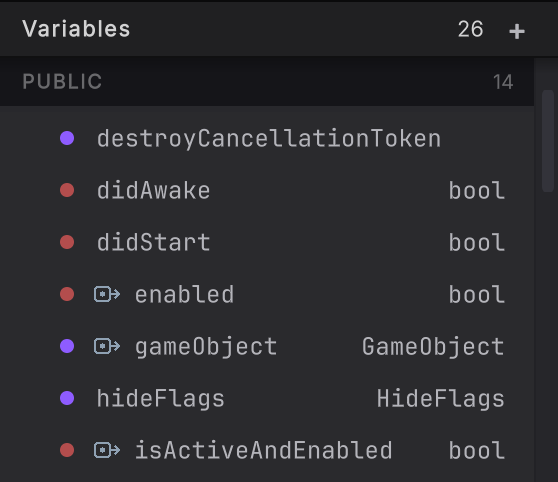
The left rail shows fields and folded properties under Variables. A DEFAULT child opens an initializer in the scoped Default value graph.
- Select the class and open Variables in the left rail.
- Press + on the Variables header (Add a field to this class) and type the new field’s name on its row. Then choose access, constant state, attributes, and Inspector options in the right rail.
- Click the row’s type to open the type chooser. most used comes first: the C# built-ins,
List<T>,Dictionary<TKey, TValue>, and the Unity types scripts reach for most. Then come your project, unity, .net, and other. Each type is spelled the way the class’s file can read it. Type to search: the list updates once you pause and shows up to 50 matches per section. Right after a graph opens, while the type index is still building, the most used types are listed at once. - Choose array to be asked what the array holds. Choose a generic type such as
List<T>and the chooser asks for each type argument in turn, its heading showing what is still open:Dictionary<TKey, TValue>becomesDictionary<string, TValue>after the first choice and is written asDictionary<string, int>after the second. A method’s inputs and outputs in the right rail use the same chooser. - For a value type with no initializer, open the Default card and choose a literal or computed expression. The literal is written as a declaration initializer.
- For a recognized default, choose Edit default. The state changes from From your code to Edited · draft as soon as the draft differs.
- For a storage-backed property, inspect the Storage card. A getter-only fold is read-only; a writable fold routes reads and writes through the property name.
- Open the DEFAULT child in the left rail for a graphable initializer. The scoped view reads Default value graph, Rail, READ-ONLY · V1, and View source when a source span exists. Its lock explains
Read-only · v1: edit defaults in the right rail. - Inspect the initializer graph. This canvas is for reading only. Return to the rail to edit or remove the whole default.
- Press Compile. Round Trip writes the declaration change, imports the file, and rebuilds the field and property views from source.
What it writes
Section titled “What it writes”When it goes wrong
Section titled “When it goes wrong”When it goes wrong
| Symptom | Check | Fix |
|---|---|---|
| Compile is disabled | Look for an invalid literal, missing field name, or missing type. | Repair the field-local callout before compiling. |
| Create Set Node is unavailable for a property | Read the Storage card access state. | Use the backing field where appropriate or add a setter as a separate draft. |
| The initializer graph is read-only | Look for READ-ONLY · V1 in the identity strip. | Use Rail to return and edit the default in the right rail. |