
Operators and expressions
Place math, comparison, and logic nodes from the action menu and wire values through them.
On this page
Operator nodes turn values into new values. Math nodes work on numbers, comparison nodes answer yes or no, logic nodes combine yes-or-no answers, and Concat joins text.
What it does
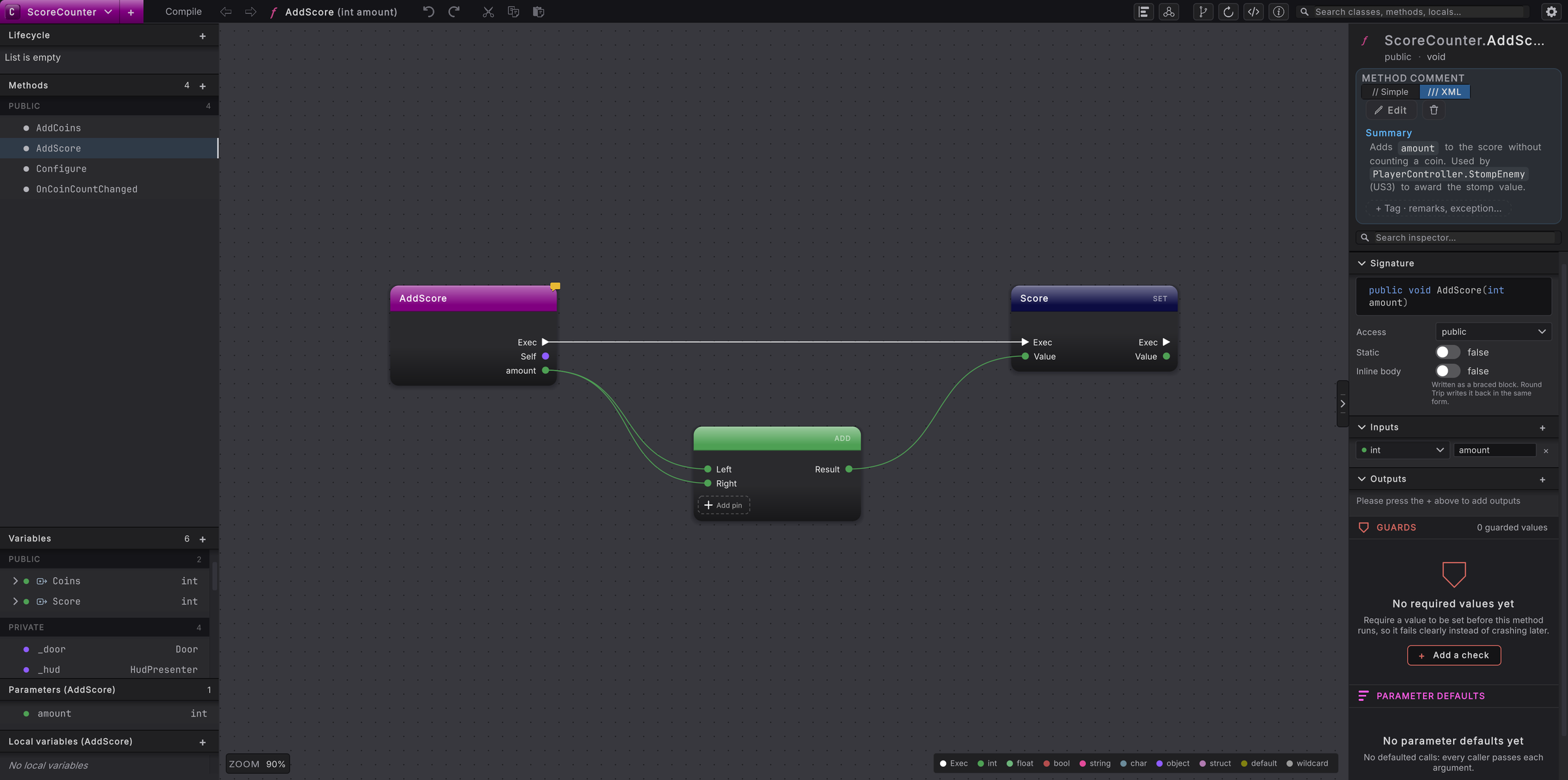
Section titled “What it does”Each operator is a node with inputs on the left and one Result pin on the right, colored like the value it produces: red for a comparison or logic answer, green for a number, pink for text. It has no white pins: it works out its answer at the moment a node on the white wire asks for it. You build a bigger calculation by wiring one operator’s Result into the next operator’s input, so the order of the math is the order of the wires.
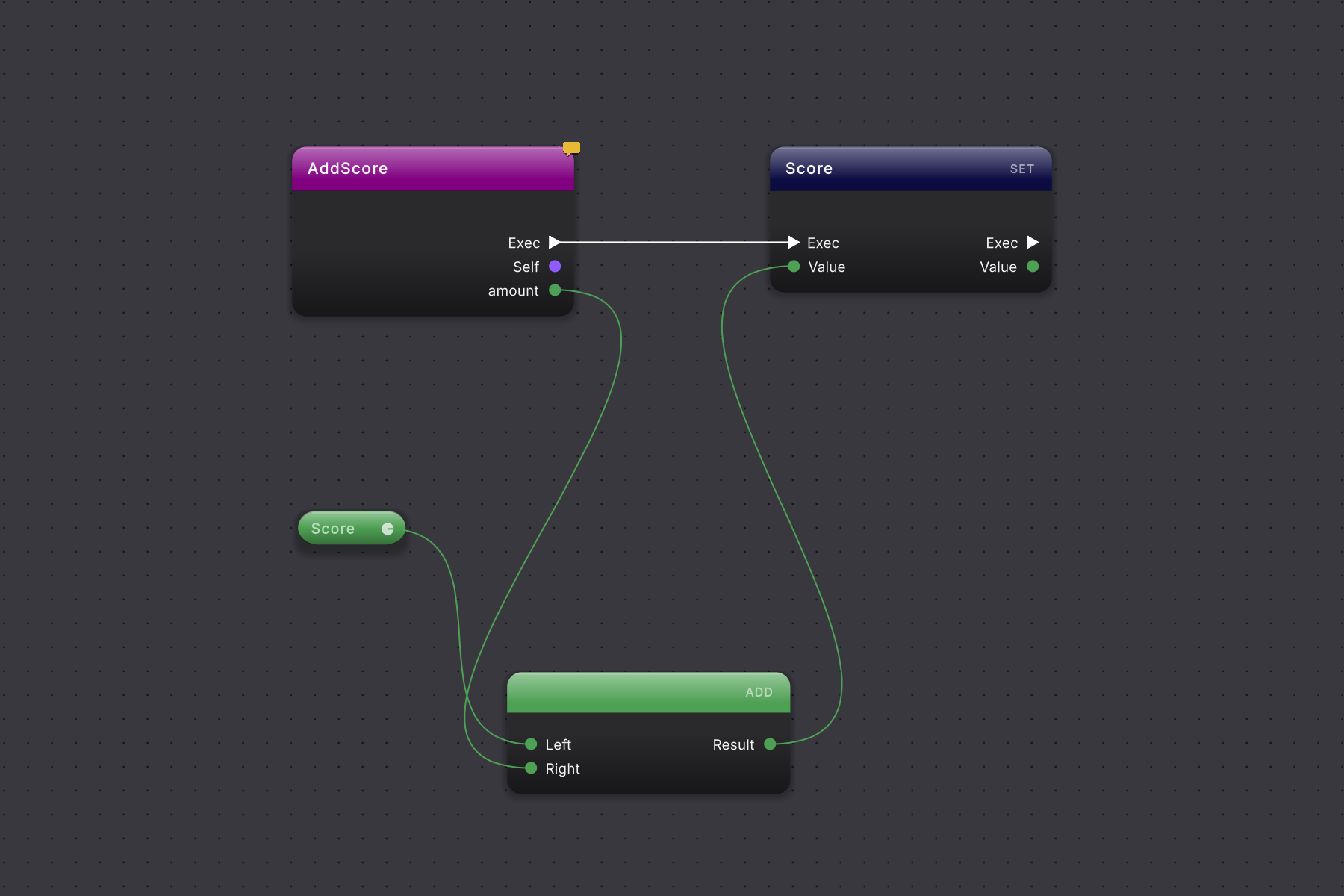
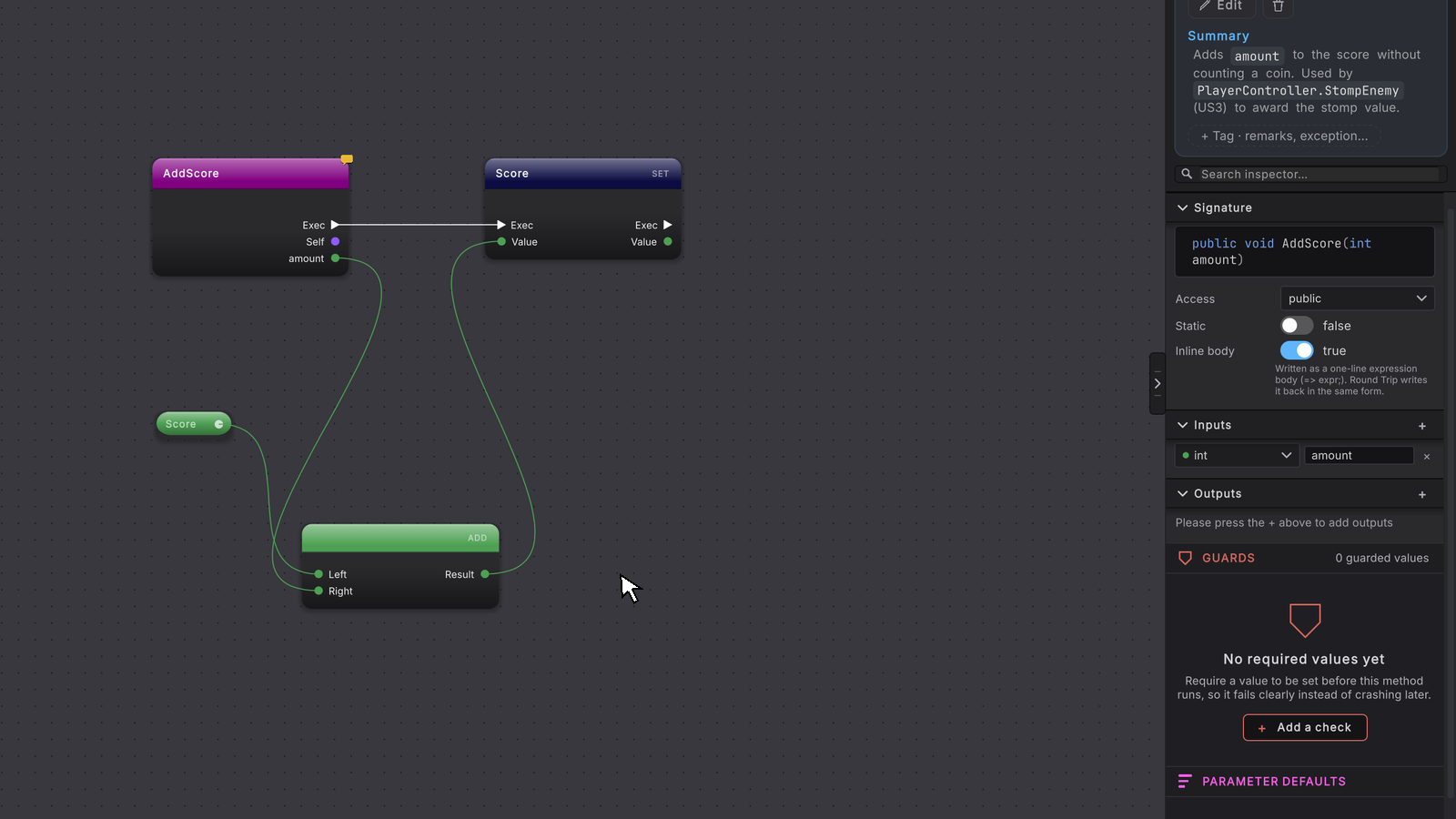
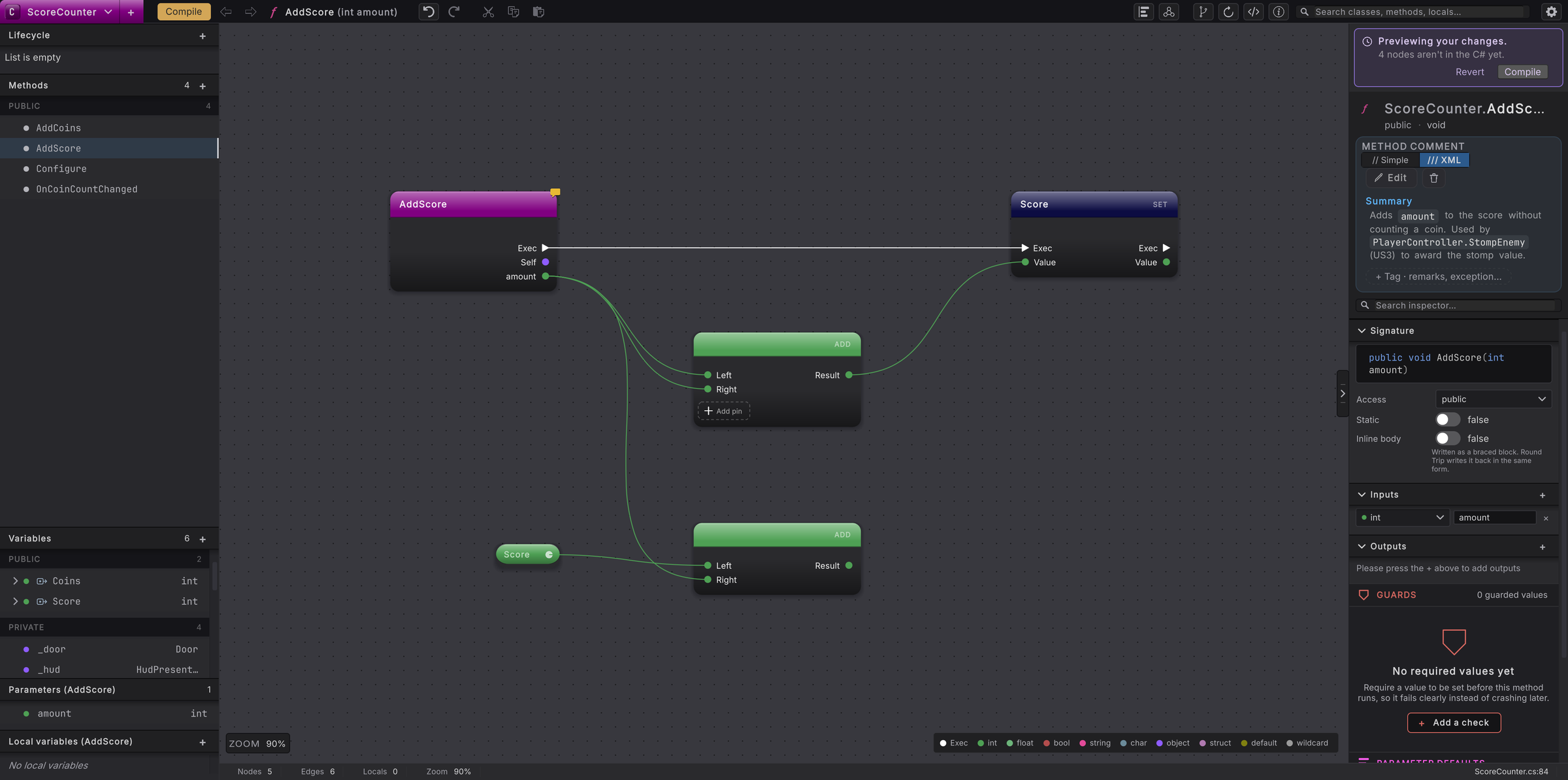
Adding to a value is a read flowing through an ADD node and back into a SET node for the same value. That loop on the canvas is the whole of “add this to that”.
When to use it
Section titled “When to use it”Reach for a math node when the game needs a number worked out: score from coins times points per coin, a speed scaled by a boost, a timer counting down. Reach for a comparison when a decision depends on a number or a reference: has the player collected enough coins, is health below zero, is this the same coin as before. Combine comparisons with And or Or when the decision needs more than one answer, such as “the door is locked or the level is complete”. Use Concat to build a message such as a score label.
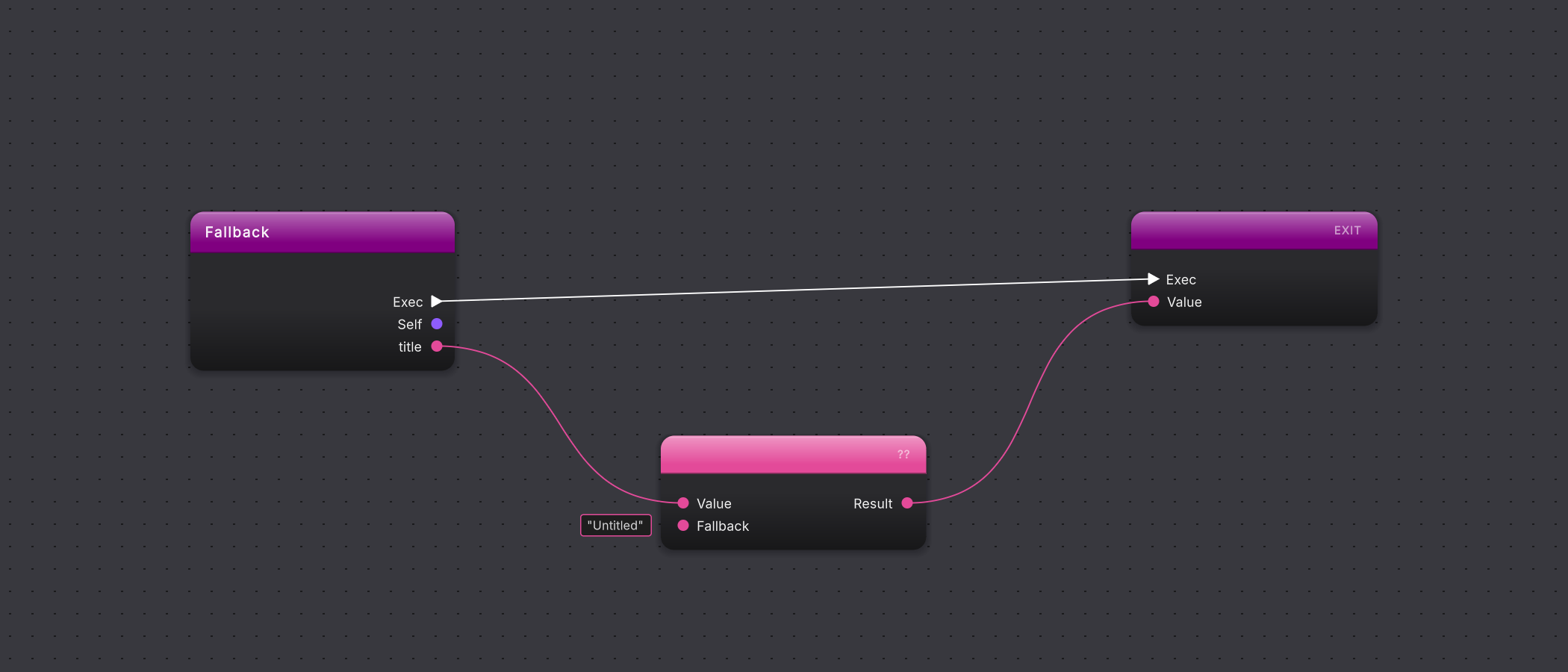
Two more operators choose values. Conditional picks one of two values by a yes-or-no answer, such as a bonus score or a normal score. Null coalesce supplies a fallback when a value is missing, such as a default title when none was given.
An operator node produces a value and never runs on its own. So when you drag a white Exec pin onto empty canvas, the menu that opens leaves out the math, Concat, comparison, and logic rows. Place them by right-clicking empty canvas, then wire their Result into the node that uses it.
What it looks like
Section titled “What it looks like”These are three separate methods in the sample, each using a different kind of result. None of these slides is an edit of the previous method.
Compare result types
Select a screenshot to enlarge it.
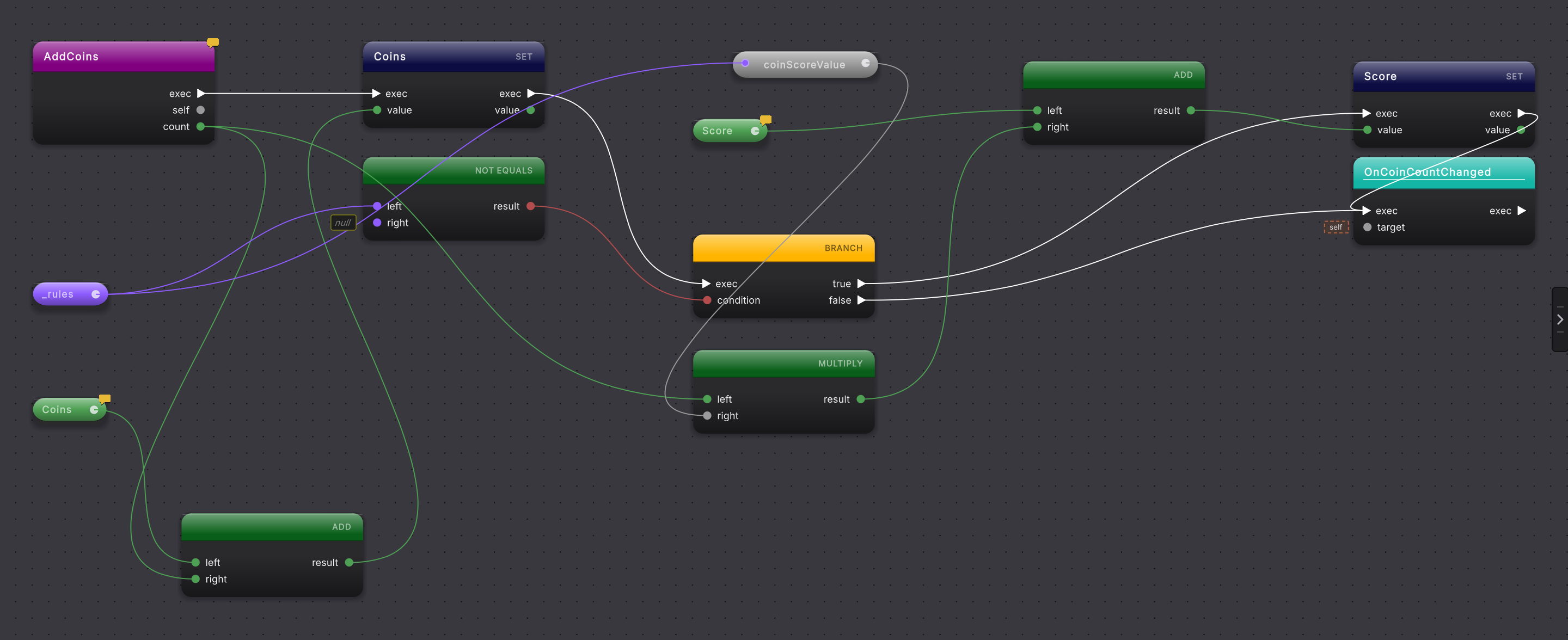
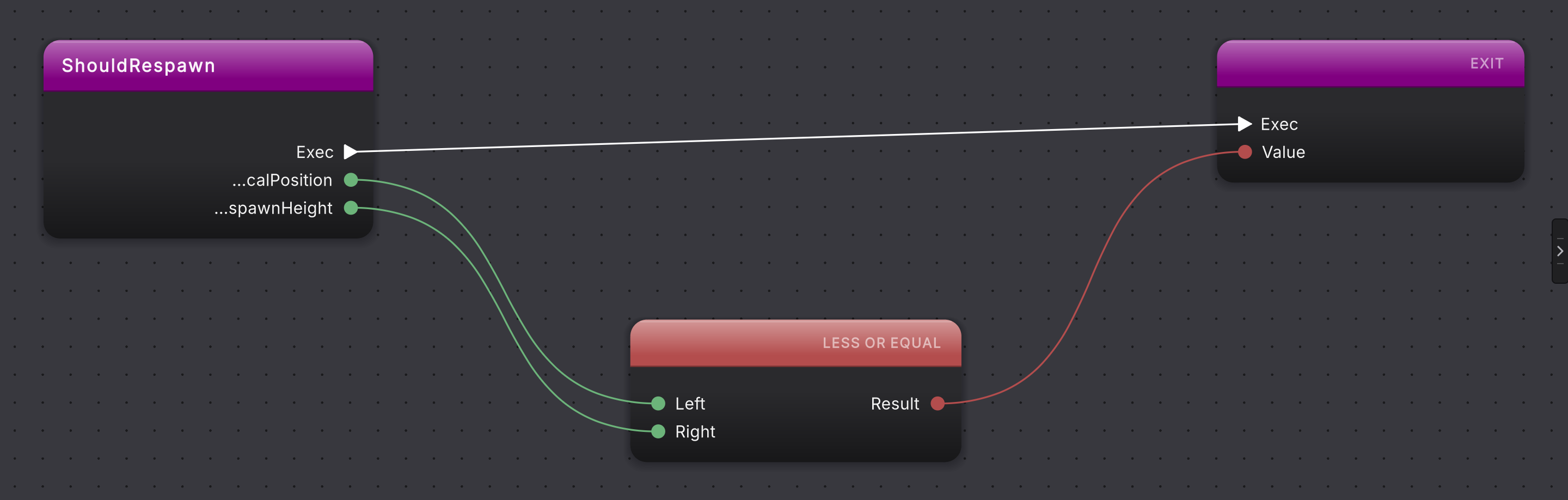
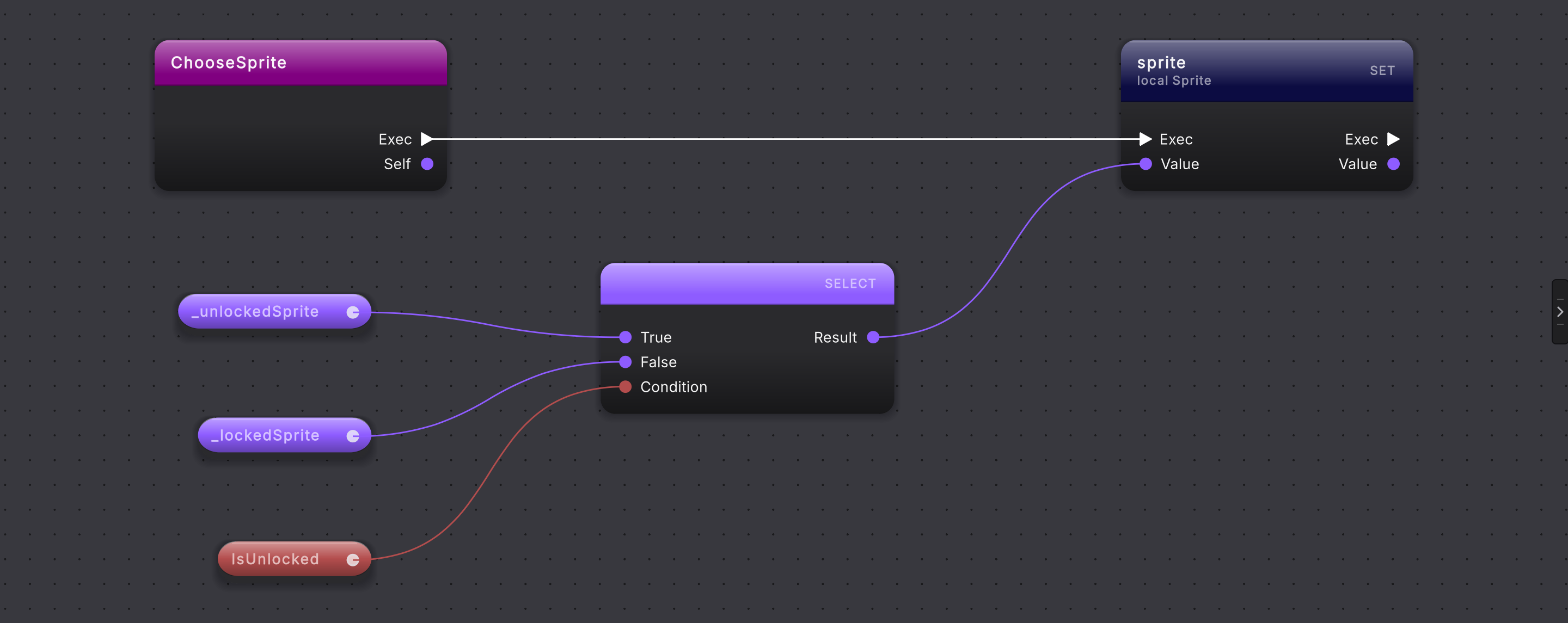
How to use it
Section titled “How to use it”Build and use operator results
Place an operator
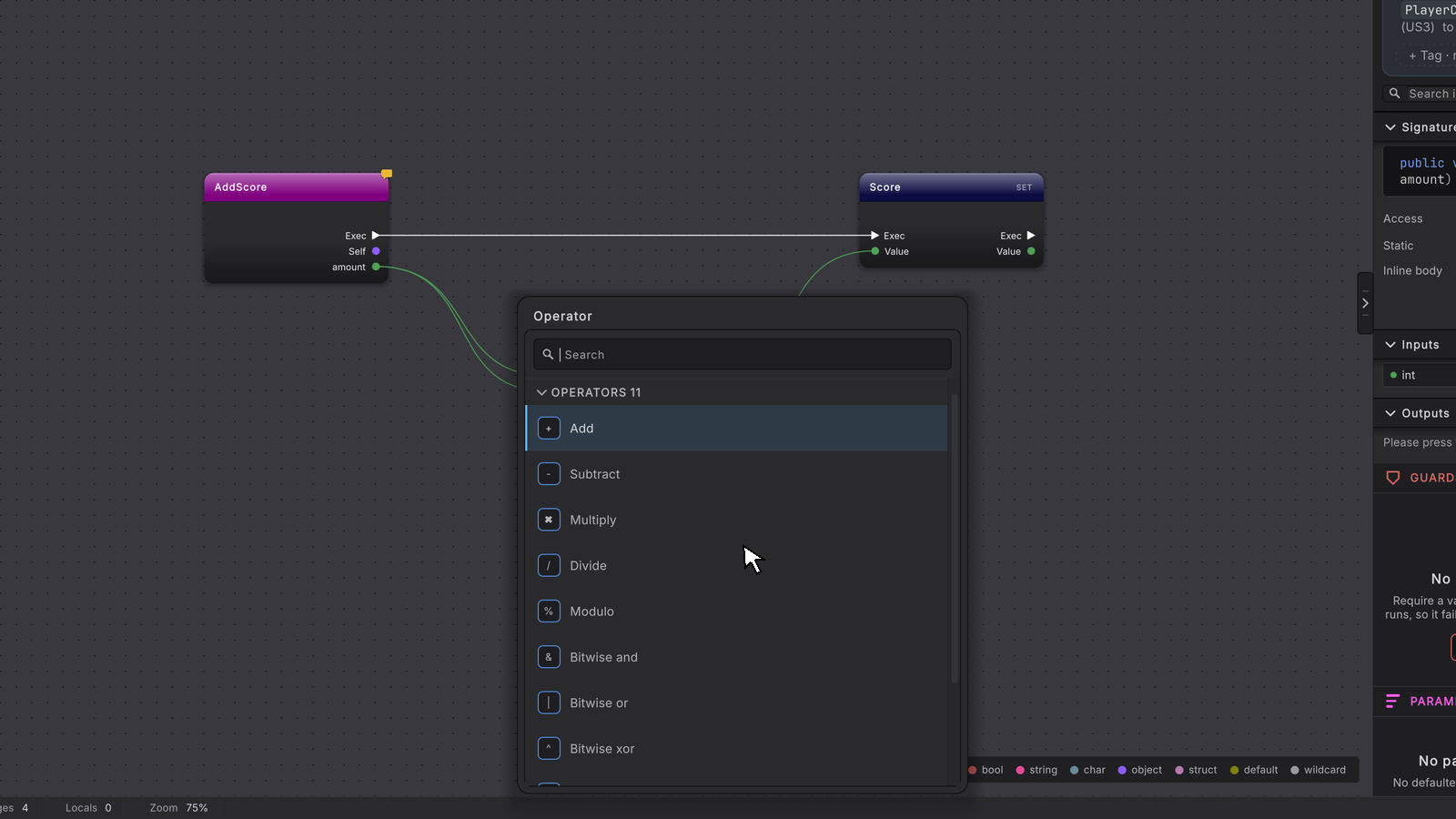
On a method canvas that has a node needing a value (a SET node, a call node, or a yellow BRANCH node with an empty Condition pin), right-click empty canvas nearby and type the operation’s name, such as Add, Subtract, Multiply, Divide, or Modulo. Pick one.
 2 stepsFull size ↗
Supply the operands
Fill Left and Right. Drag a wire from a pill, a parameter pin, or another node’s result, or click beside the pin and type a number such as
5.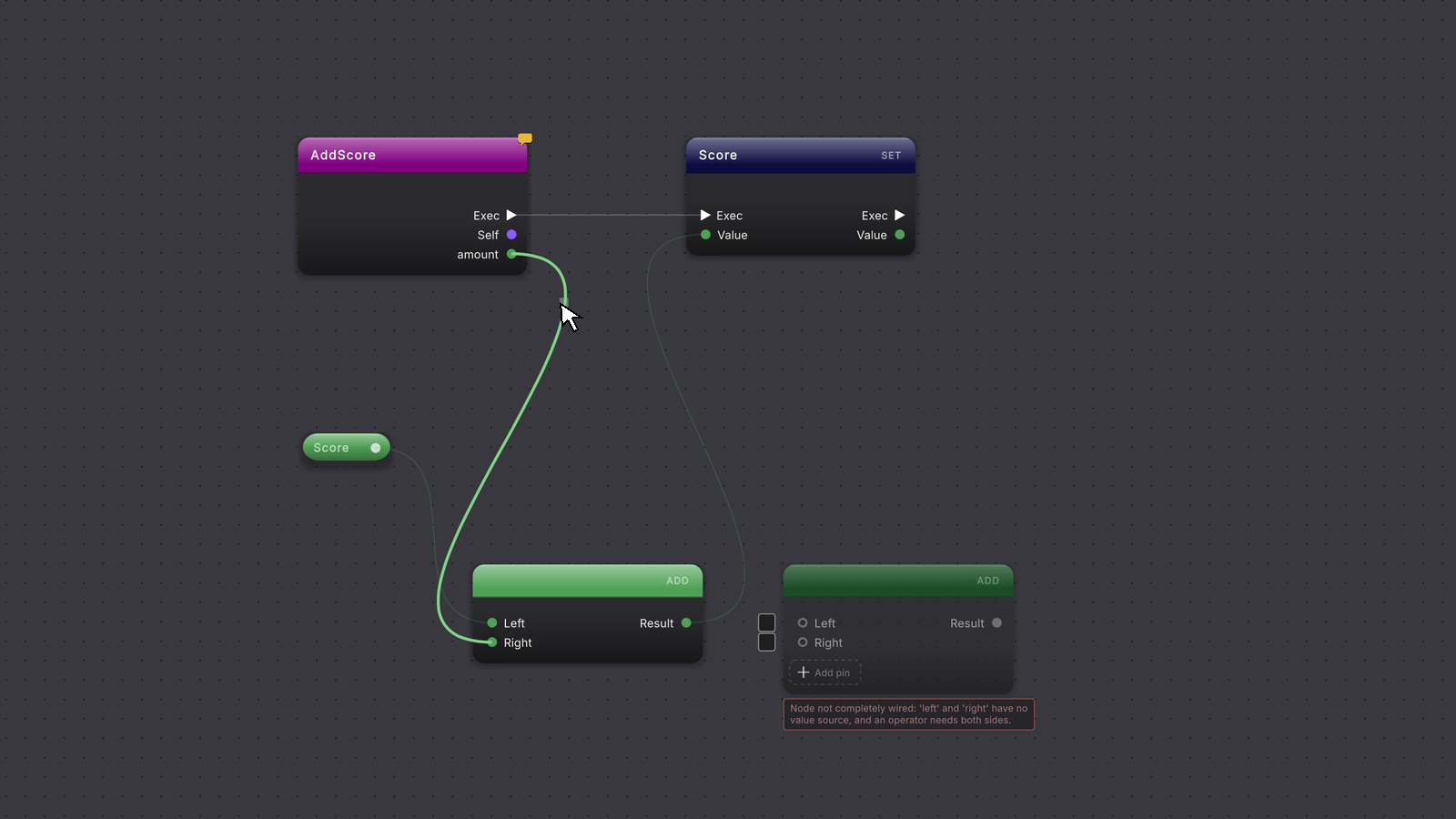 4 stepsFull size ↗
Add or remove an input
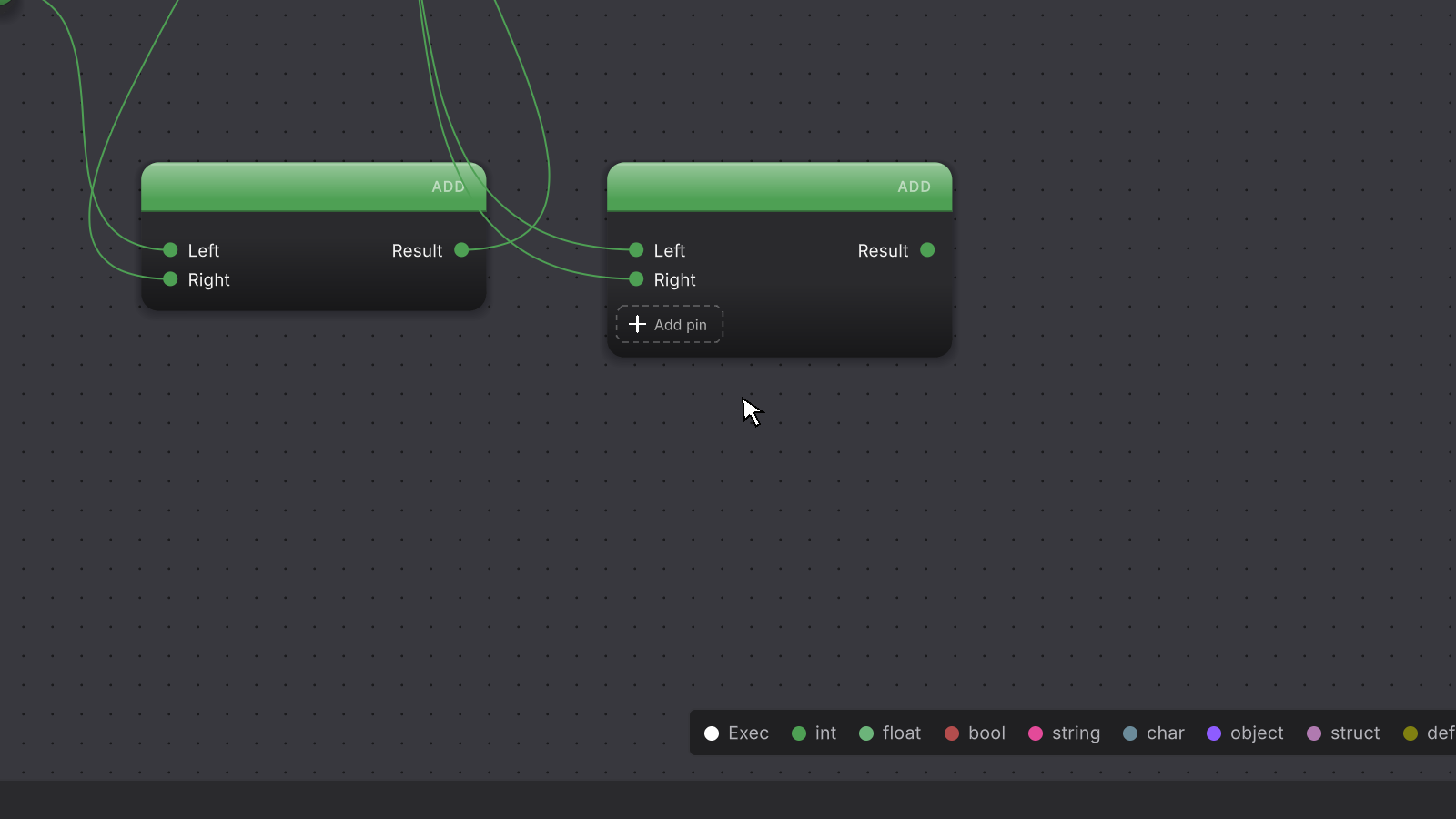
To work on more than two values, click Add pin under the inputs of an Add, Subtract, Multiply, Divide, And, Or, or Concat node. Hover an input to show its remove icon, then click it to take the input away.
 3 stepsFull size ↗
Connect the result
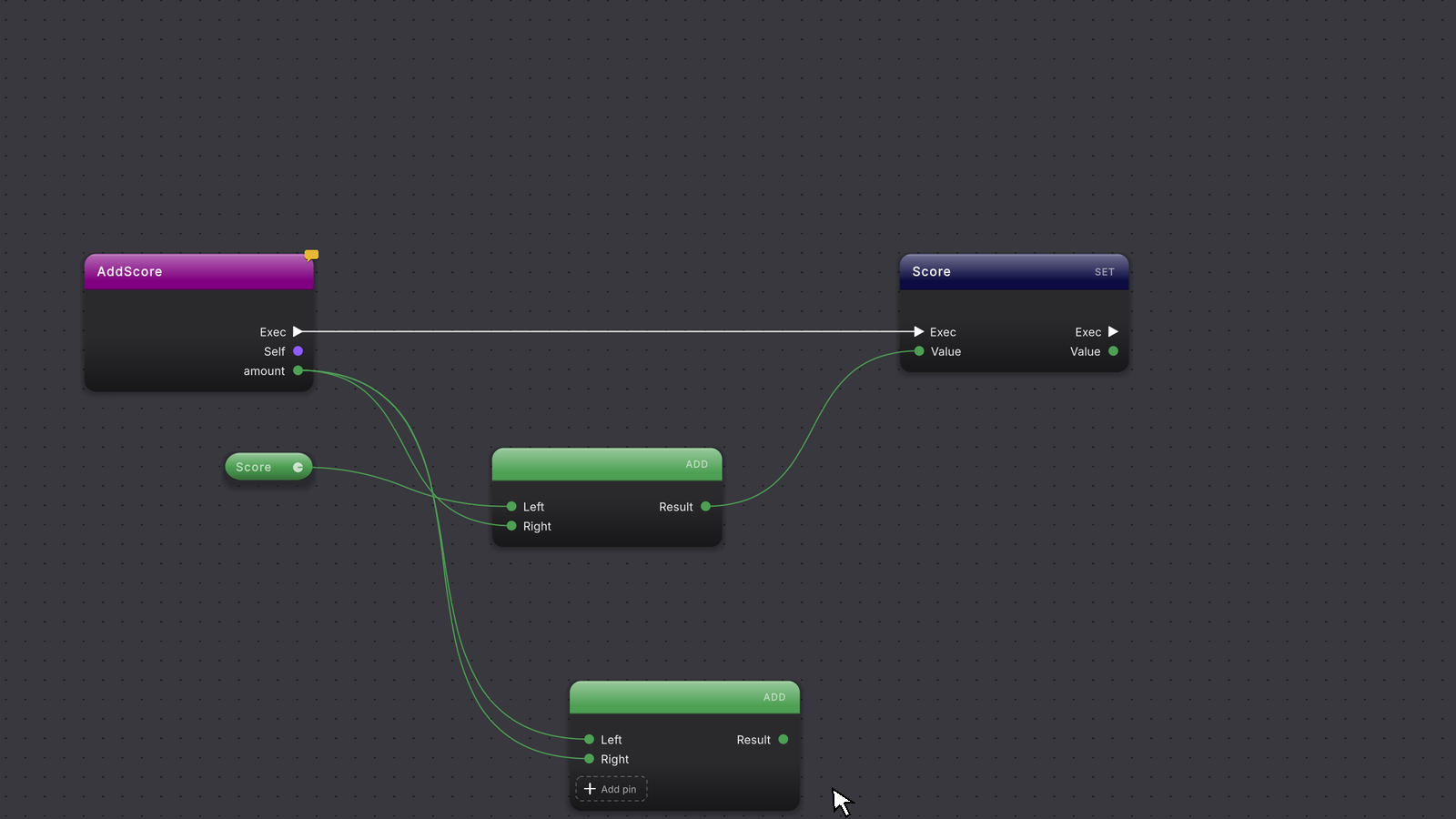
Drag from Result to the pin that needs the answer, such as the SET node’s Value.
 2 stepsFull size ↗
Compare values
For a yes-or-no answer, use Equals, Not equals, Less than, Less or equal, Greater than, or Greater or equal. Wire a comparison result into a BRANCH node’s Condition, into And or Or, or into a return value as shown here.
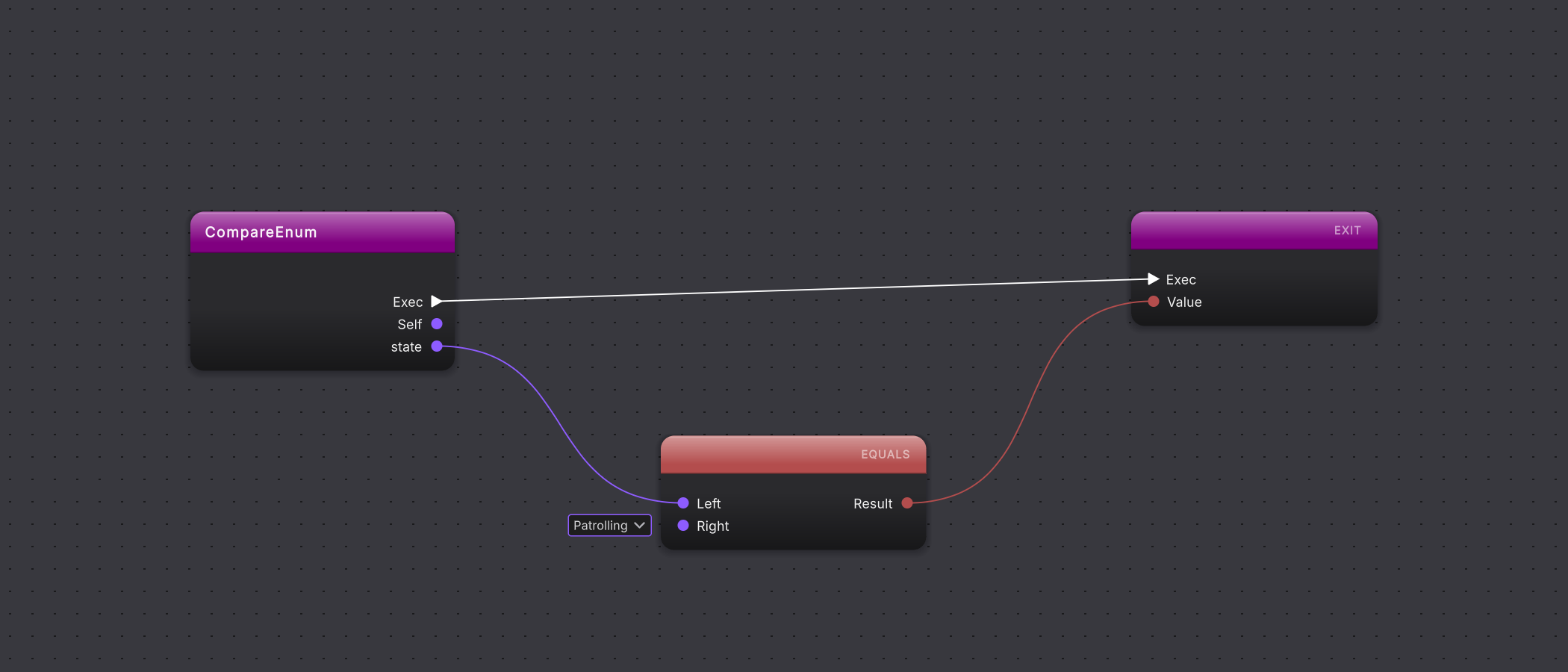
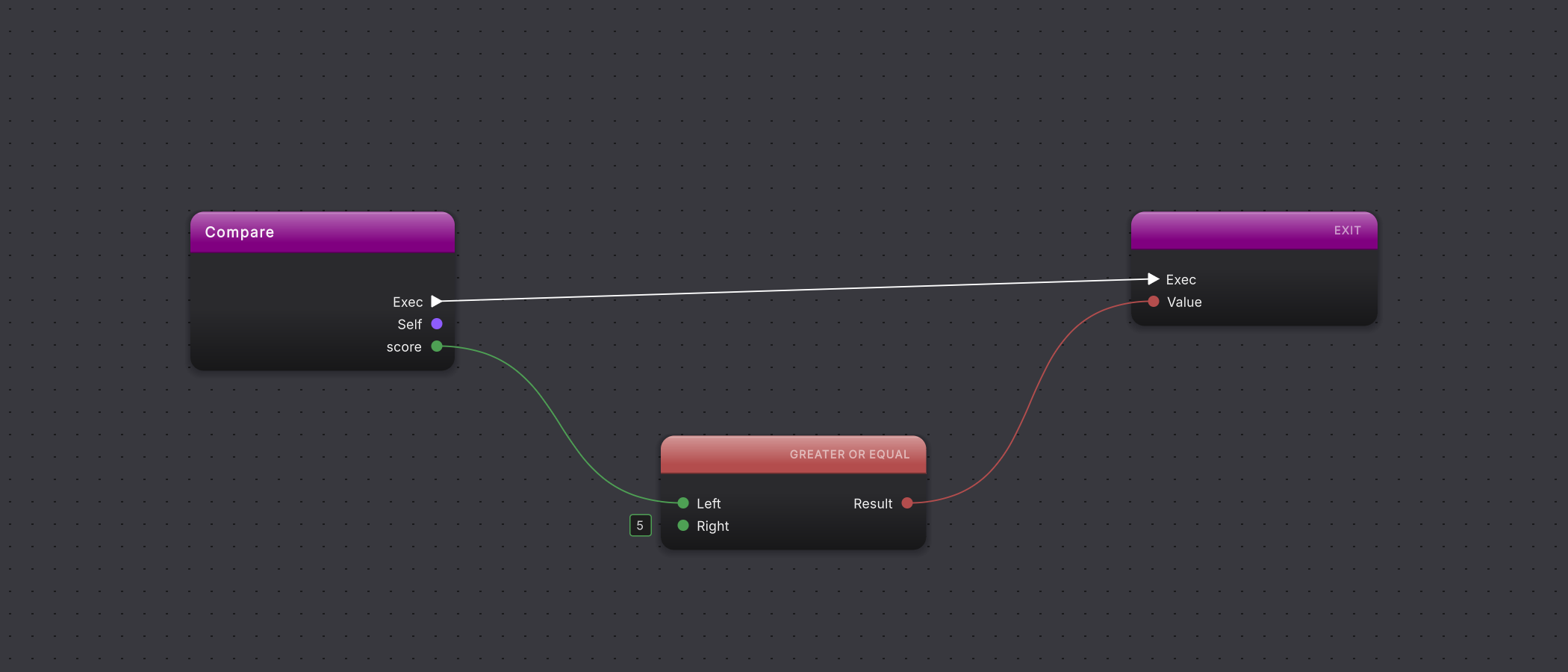
Join text
To build text, use Concat. Wire text or another value, such as a label and a score, into either side.
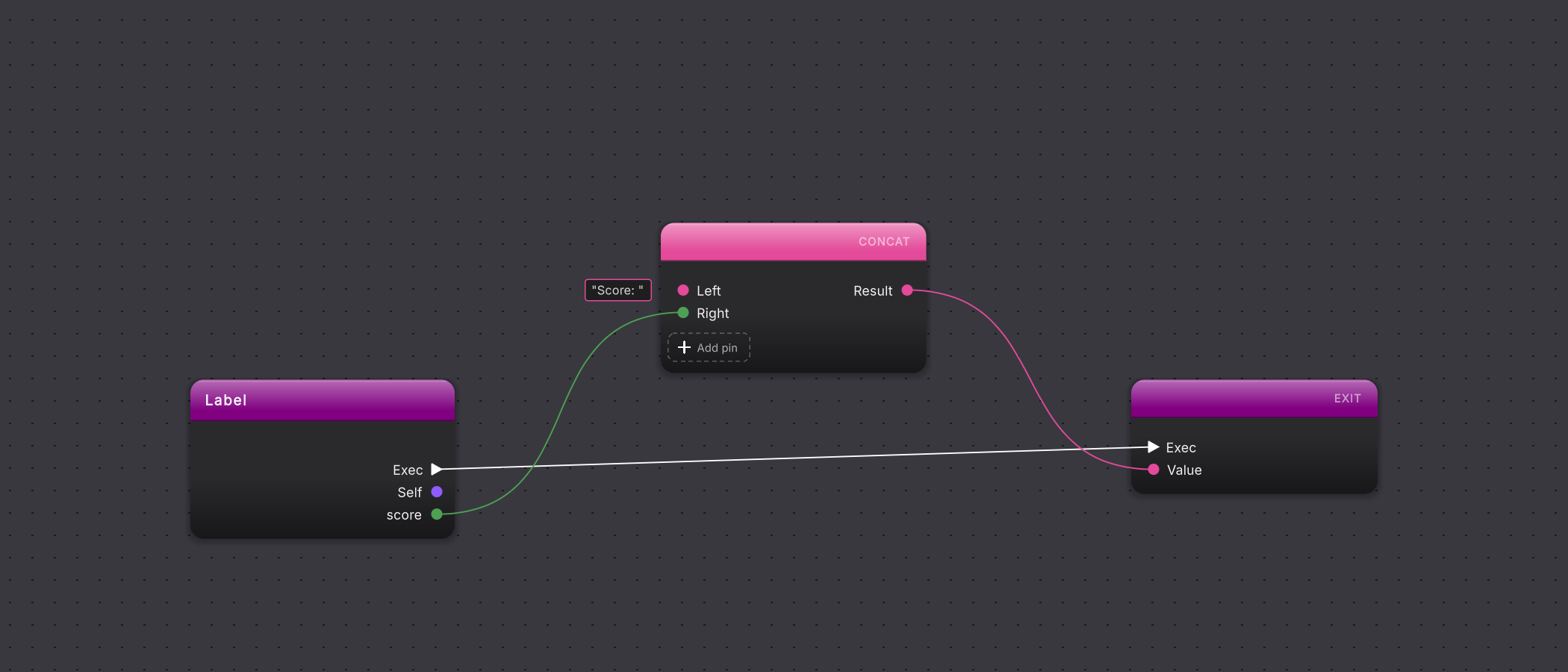
Choose a value or fallback
To pick between two values, use Conditional. Wire the deciding answer and candidate values into its pins and its Result into the node that uses it. To supply a fallback for a missing value, use Null coalesce.
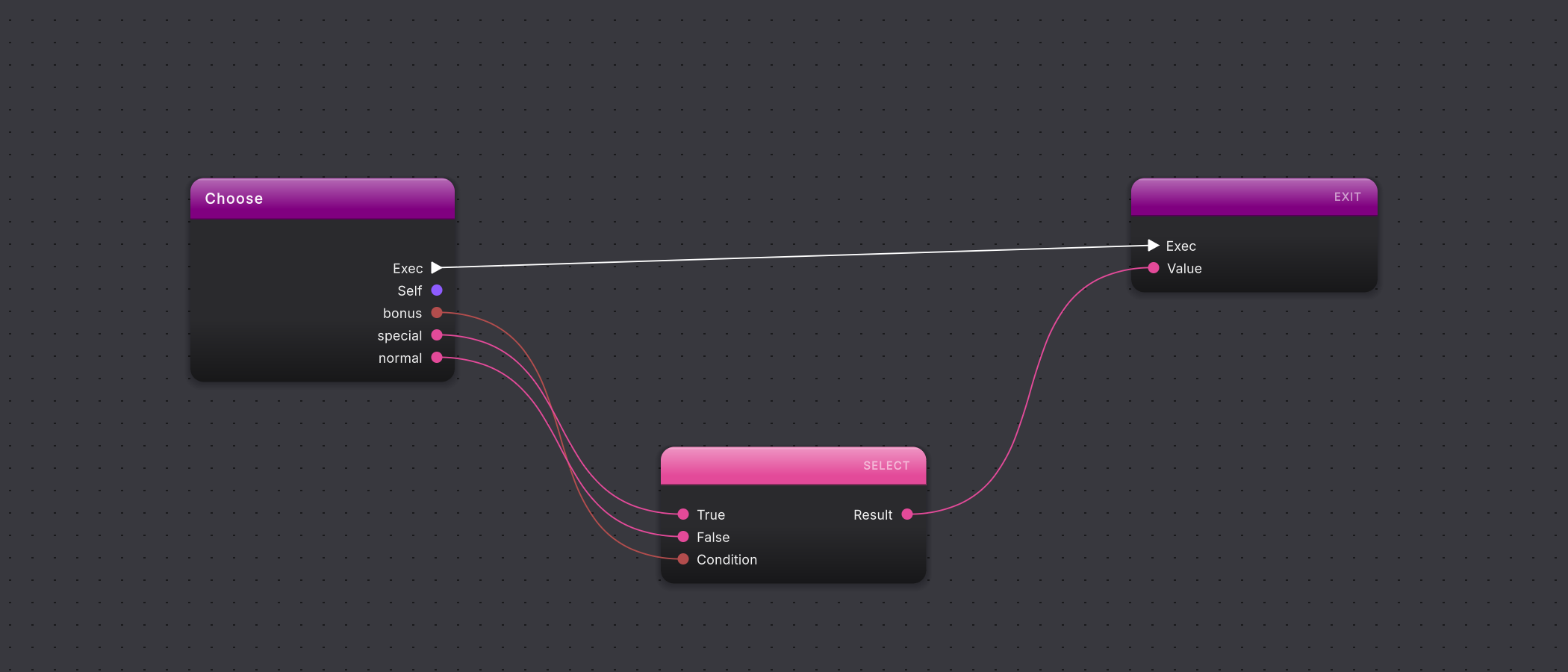
Change an operation
To swap a math node for a different operation, right-click the node, choose Change operator, and pick the operation.
 2 stepsFull size ↗
Compile the connected result
Press Compile in the toolbar.
A call or read that should quietly do nothing when its object is missing shows a small shield mark beside its Target pin, as PlayCoin does on the _audio wire in the CollectCoin visual script of the Platformer sample.
What it writes
Section titled “What it writes”If you also work in C#, this is what is written into the script. The Coins, Score, and _audio lines come from the Platformer sample, gathered here in an AddBonusCoins method on ScoreCounter whose inputs feed the two var lines, short illustrations of Null coalesce and Conditional.
A read flowing through an operation back into a SET of the same value keeps its short += spelling in the script while it still reads that same value. A new operation built on the canvas is written out in full. Brackets are added wherever the math needs them, and wherever the script must read back as the nodes you built: two MULTIPLY nodes, one feeding the other, are written (a * b) * c, while one MULTIPLY with three inputs is written a * b * c.
When it goes wrong
Section titled “When it goes wrong”When it goes wrong
| Symptom | Check | Fix |
|---|---|---|
| An operation is missing from Change operator | Look at the colors of the wires feeding left and right. | Wire values of a type that operation accepts, then open Change operator again. |
| Compile reports a missing operand | Look for a hollow input pin on an operator node. | Wire or type a value into every hollow pin, or remove an input you added and did not need. |
| An add-to-value loop is written out in full | Follow the read into the operator: is it the same variable the SET node writes? | Wire a read of that same variable back in if you meant add to it. |