
Classes and members
Find a class, narrow its members, and open the right method from the Explorer rail.
On this page
A project can have a hundred classes. The left rail helps you reduce that to one method without opening file after file.
The problem
Section titled “The problem”The Platformer spreads movement, score, enemies, and progression across separate classes. If the door stays locked, you may need ScoreCounter, Door, or the rule that decides the threshold. Folder browsing tells you where files live, but not which member contains the behavior.
When to reach for it
Section titled “When to reach for it”Use the Explorer when you know a class or member name, when you want to browse code from folders included in Round Trip, or when a teammate points you at a behavior instead of a file path.
The class list comes from the source folders included in Project Settings > Round Trip. Selecting a class fills the member rail. Methods are grouped under PUBLIC, PRIVATE, and INTERNAL. Protected forms join the internal group. Separate sections hold variables, properties, and events, so a field read does not disappear into the method list.
Overloaded methods appear as one caret group. Open its context menu and choose Expand Overloads to reveal each signature. A property with a body groups its getter and setter in the same way; choose Expand Accessors to open the get and set rows.
The Methods header carries a + that adds a method to the selected class; the new row opens as a name box so you name the method where it is listed. A method row’s context menu ends with Delete Method. Its dialog names the lines in the file that still use the method, and Delete writes the file at once. A new method that was never compiled is only discarded.
See it
Section titled “See it”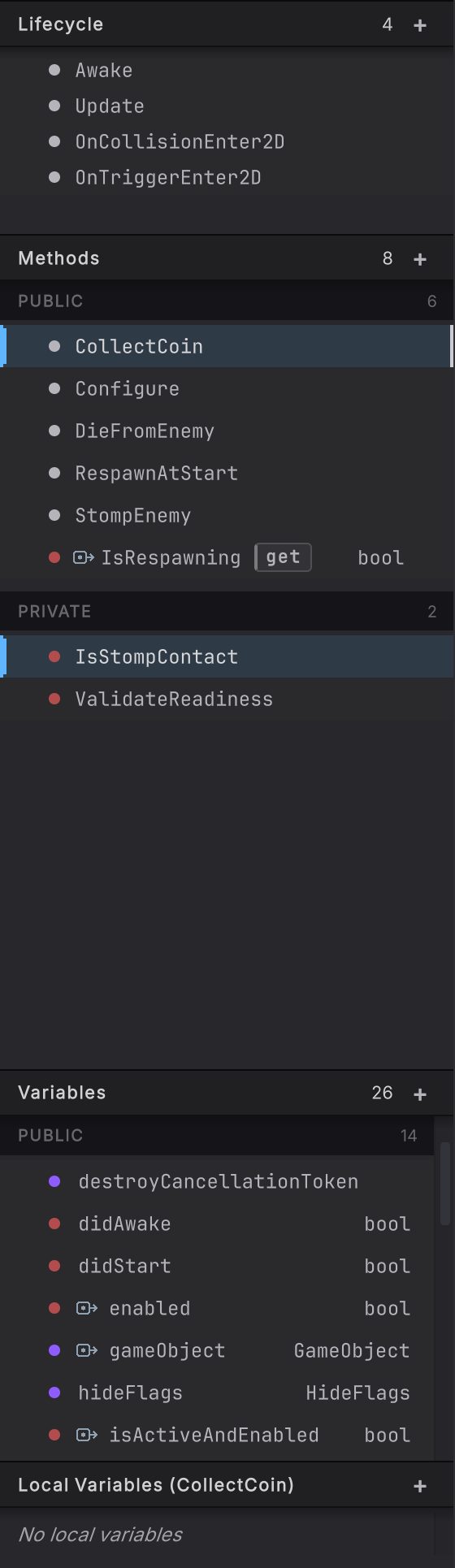
-
Open Tools > Round Trip > Graph View. The Round Trip Graphs window indexes the folders included in Round Trip.
-
Press Cmd/Ctrl+K to open the class picker. Type
EnemyStateMachine, then use Up or Down to move through matches and Enter to open the class. -
Look under PRIVATE and choose
ApplyState. The switch graph appears on the canvas. -
Press Cmd/Ctrl+P and type
CurrentState. Global search can find classes, methods, parameters, locals, and parsed graph nodes. Pick a result to move directly to it. -
Return focus to the method rail. Use Up and Down to move. On an overload or accessor group, use Right to expand and Left to collapse. Press Enter or Space on a method row to open it.
-
Right-click an overload group and read Expand Overloads. Right-click a property face and read Expand Accessors. These group rows own no method body; their child rows do.
What it reads
Section titled “What it reads”The rail reflects C# declarations. A method group such as this becomes one expandable name with distinct signature rows:
public void Configure(IRoundTripLogger<Door> logger)public void Configure(IRoundTripLogger<Door> logger, HudPresenter hud)public void Configure(IRoundTripLogger<Door> logger, HudPresenter hud, AudioCuePlayer audio)Choosing a row opens that exact body. Expanding or collapsing the rail does not alter C#.
When it goes wrong
Section titled “When it goes wrong”When it goes wrong
| Symptom | Check | Fix |
|---|---|---|
| A class is missing from the picker. | Check whether its folder is included in Project Settings > Round Trip. | Add the source folder, then let the index refresh. |
| The method name is present, but the body you expected is not open. | Expand the overload group and compare the full signatures. | Choose the child row whose parameters match the call you are tracing. |
| A property row does not open a graph. | Look for the accessor caret and its get or set children. | Choose Expand Accessors, then open the specific accessor row. |
- Identity and inspector: read the selected method in the right rail.
- Navigate to source: jump to the exact C# declaration.
- Nodes, pins, and wires: start reading the graph itself.