
Git
What Round Trip needs from a Git repository, how it shows your uncommitted changes, and where to learn Git properly if you do not use it yet.
On this page
Round Trip reads a Git repository to show which classes changed since your last commit; committing, diffing and restoring files stay in your own Git tool. If you do not use Git yet, Unity Version Control is the easier road for a Unity project; Choose your strategy compares them.
Set up
Section titled “Set up”The free Pro Git book covers Git properly, and GitHub’s GitHub Desktop documentation covers the same work without a terminal. Install Git itself from git-scm.com; Round Trip runs the git program it finds on your computer, even when you commit from a graphical app.
Two things are specific to Unity, and both must be in place before the first commit:
- A
.gitignorethat keepsLibrary,Temp,Logs,obj,UserSettingsand build output out of the repository. Use GitHub’s Unity template as it is. - Git LFS for textures, audio, models and other large binary files, set up before those files are committed. GitHub’s Git Large File Storage section covers installing it, tracking file types and what to do when files were committed first.
For Round Trip itself: commit ProjectSettings/RoundTripSettings.asset, which holds the folders Round Trip reads, so the team indexes the same code. Commit the RoundTrip folder only when the team uses Shared layouts (Layout and configuration files). UserSettings stays out; it holds each person’s own layouts and last open method.
Every session
Section titled “Every session”Commit before you edit, or before an AI assistant edits, and commit again afterwards. Your last commit is the version you can go back to in your Git tool, so frequent commits keep it useful.
What Round Trip shows
Section titled “What Round Trip shows”Review saved source changes
Select a screenshot to enlarge it.
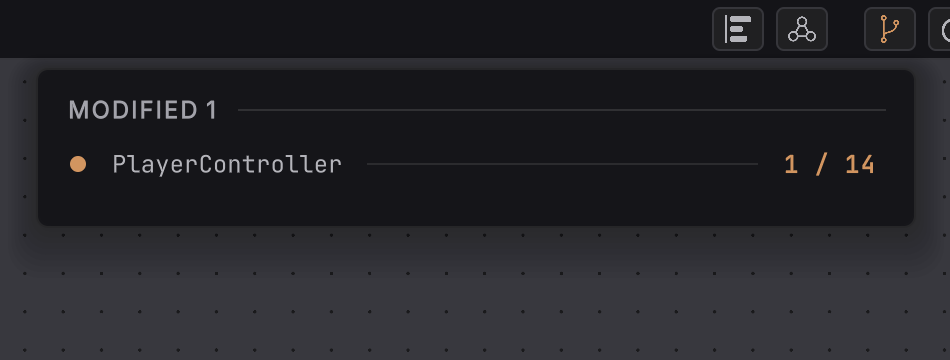
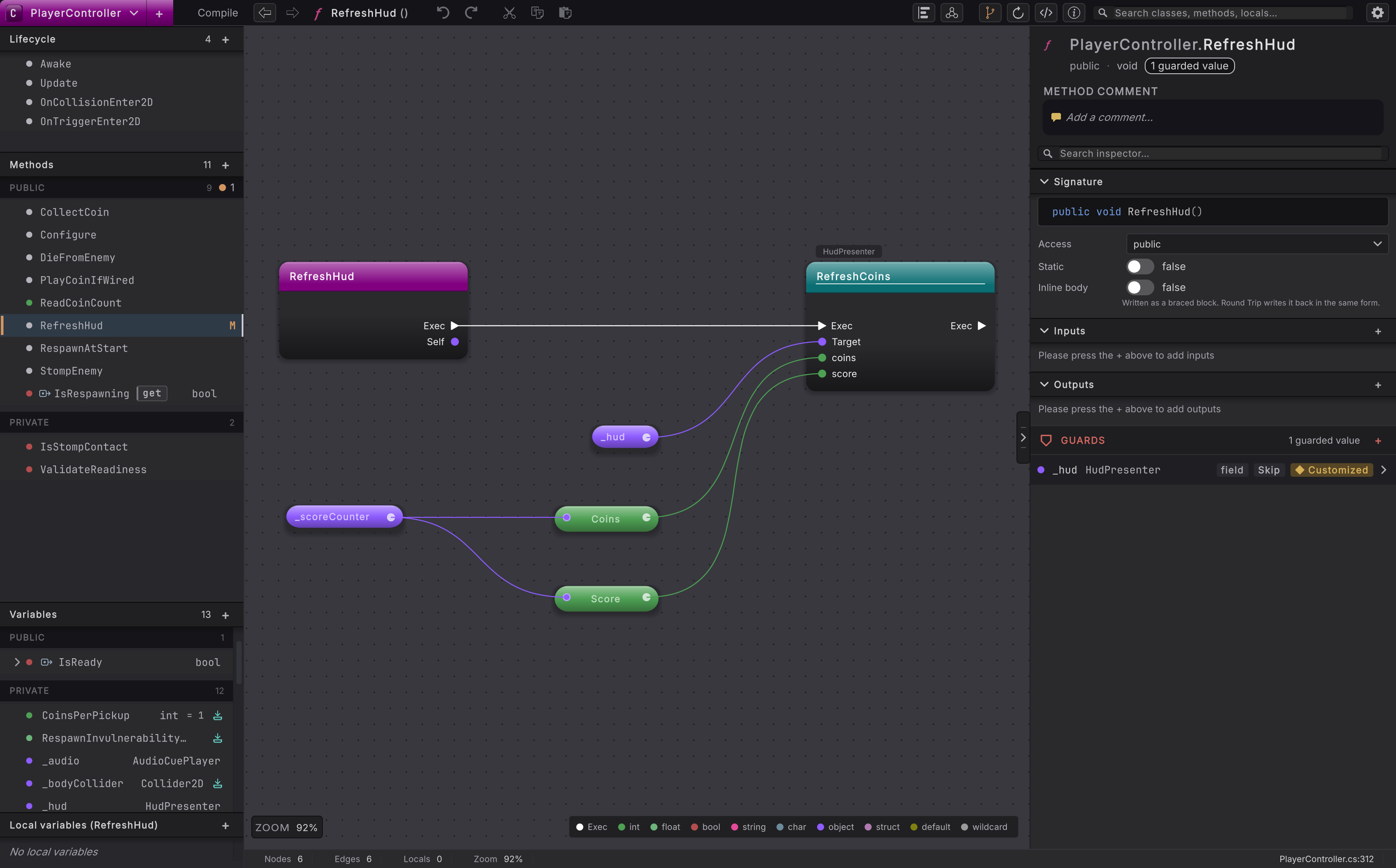
Restore
Section titled “Restore”Use your Git tool. Restoring a file from HEAD or from an earlier commit, reverting a commit, and looking at a file’s history are ordinary Git operations, and the guides above cover them. Before any of them, keep pending work you still need: commit it, stash it, or copy the affected files aside.
The published repository is your off-machine copy. An occasional independent backup guards against losing the repository or the host account.
When it goes wrong
| Symptom | Check | Fix |
|---|---|---|
| The Changes button is grayed out. | Hover it. The tooltip reads No version control detected. | Open the Unity project from inside the repository, with its .git folder present. |
| The Changes list is empty or the button is grayed out although you changed files. | Run git --version in a terminal, and check that the project folder is inside the repository. | Install Git if it is missing, or open the project from inside the repository, then reopen Unity. |
- Changes and history: the Changes list and the method menu.
- Check what the AI did: review a change as a diagram, then keep it or go back.