
Identity and inspector
Read the right rail's identity header, node details, comments, rename control, and pending-changes panel.
On this page
The right rail answers the question a crowded canvas cannot: what exactly is selected?
The problem
Section titled “The problem”A card called ApplyState is easy to recognize. A selected expression, field, property, or lifecycle method needs more context. You need to know its kind, access, return type, comments, and editable details without guessing from color.
When to reach for it
Section titled “When to reach for it”Use the inspector whenever two nodes look similar, a method name is ambiguous, a pin needs an exact type, or you are about to rename something. It is also where every pending draft is counted before you press Compile in the toolbar.
See it
Section titled “See it”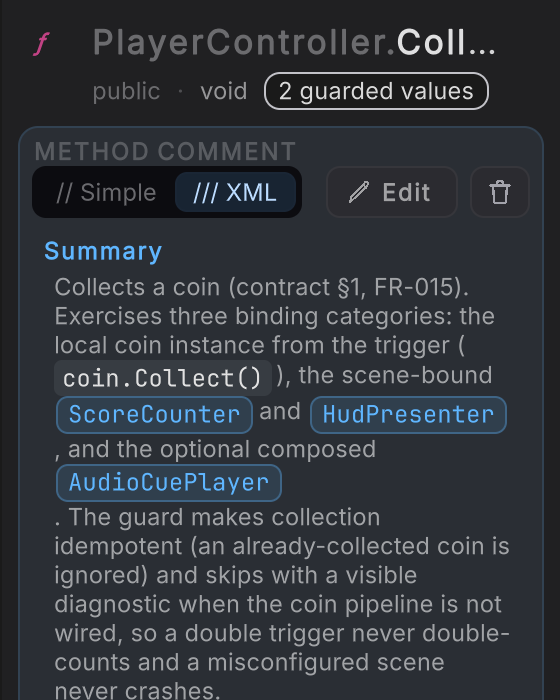
-
Open a Platformer method and select its row. At the top of the right rail, read the family glyph and name.
-
Read the metadata line beneath it. The identity recipe is
kind · access · returns: the type of thing, its visibility, and its result. For methods, the class prefix and method name identify the declaration while the metadata gives access and return type. -
Read the comment slot below the identity. Source comments and XML documentation appear here when present. An empty slot remains visible, so the place for documentation does not move between selections.
-
Press F2 while an ordinary method name has focus. Type the new name, press Enter to commit the draft, or Escape to cancel. Clicking away also commits. Lifecycle method names are read-only because Unity invokes those exact names.
-
Select a node on the canvas. The cards below the header change to the node’s facts: inputs, outputs, condition, call target, loop settings, source mapping, or other details supported by that node. With the method itself selected, each input’s and output’s type is a button that opens the same type chooser fields use, generic types included.
-
Make an editable change. The pinned panel appears above the identity header with Previewing your changes., a graph-wide count, and Undo. Changing selection does not move or clear it. Compile is in the top toolbar.
What it writes
Section titled “What it writes”Renaming an eligible method stages a declaration edit. A rename from ApplyState to RefreshState previews this declaration shape until Compile:
private void RefreshState(){ // Existing method body stays here.}The identity header itself writes nothing when you only inspect it. Lifecycle names remain locked, so no draft is created for them.
When it goes wrong
Section titled “When it goes wrong”When it goes wrong
| Symptom | Check | Fix |
|---|---|---|
| F2 does not open the name editor. | Check whether the selected method is a Unity lifecycle method. | Keep the lifecycle name and edit its body or comment instead. |
| The details describe a node instead of the method. | Look for a selected card on the canvas. | Click the active method row in the left rail to return inspector focus to the method. |
| A draft seems to disappear when you select another node. | Read the pinned Previewing your changes panel at the top of the rail. | Use its Undo, or press Compile in the toolbar. Draft state belongs to the graph, not the selected card. |
- Navigate to source: open the exact declaration behind the identity.
- Variables: create GET and SET nodes from the left rail.
- Preview and Compile: follow a draft into source.