
Settings and preferences
Put team-wide indexing and recognition in Project Settings, while keeping canvas feel in your own Preferences.
On this page
One teammate likes a visible grid. Another zooms with the scroll wheel in the opposite direction. Neither preference should change which classes Round Trip finds or how it recognizes a guard.
The problem
Section titled “The problem”A Unity project needs one shared answer for source indexing and authoring rules, but each person needs a comfortable canvas. Mixing those answers creates noisy commits and inconsistent source behavior.
Round Trip follows Unity’s own boundary: project behavior in Project Settings > Round Trip, personal graph feel in Preferences > Round Trip.
When to reach for it
Section titled “When to reach for it”Open project settings when you add a source folder, choose where graph configuration lives, or change a rule that should mean the same thing for everyone. Open preferences when only the appearance or pointer behavior should change.
See it
Section titled “See it”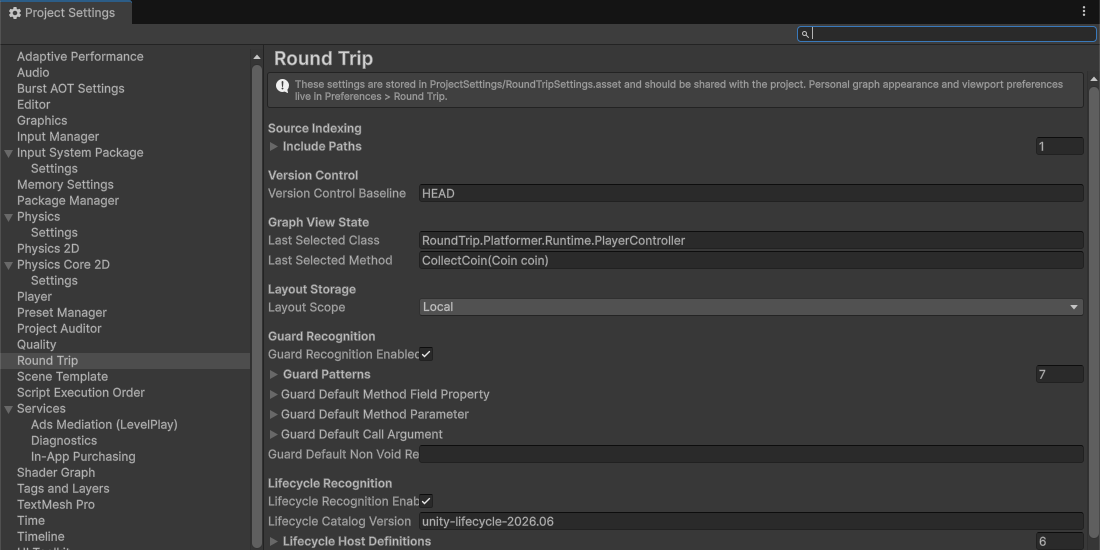
| Surface | Scope | Stored in |
|---|---|---|
| Project Settings > Round Trip | Whole project | ProjectSettings/RoundTripSettings.asset |
| Preferences > Round Trip | Current editor user | Unity EditorPrefs |
Project settings contain:
- Source include paths, including
Assets/...,Packages/..., and configured external roots. - Version-control baseline and the last selected class and method.
- Local or Shared layout storage scope. Local is the default.
- Guard recognition and editable patterns, plus site defaults and the default non-void return expression.
- Lifecycle recognition and catalog version, together with host definitions and required Unity lifecycle entries.
- Field Defaults project settings, including resolver style and condition, plus safe-lookup behavior and initializer recipes.
Preferences contain:
- Theme and canvas colors.
- Scroll-wheel behavior and zoom direction, plus zoom sensitivity.
- Edge routing and edge visuals.
- Grid visibility, line and dot colors, spacing, frequency, and dot radius.
- Open Project Settings > Round Trip.
- Add
Assets/Platformer/Runtimeto the source include paths if it is not already indexed. - Confirm Layout Storage is Local unless your team has chosen to review shared layouts.
- Review guard, lifecycle, and Field Defaults settings before changing them. These affect project-wide recognition or generated source choices.
- Commit
ProjectSettings/RoundTripSettings.assetwith the project when a shared setting changes. - Open Preferences > Round Trip.
- Change the canvas, scroll and zoom, edge routing, or grid controls until the graph feels right for you.
What it writes
Section titled “What it writes”Project settings are serialized by Unity at:
ProjectSettings/RoundTripSettings.assetPersonal graph preferences use Unity EditorPrefs keys with the RoundTrip.GraphPreference prefix. They are not project assets.
When it goes wrong
Section titled “When it goes wrong”When it goes wrong
| Symptom | Check | Fix |
|---|---|---|
| A class is missing for everyone. | Check the shared include paths. | Add its source folder under Project Settings > Round Trip. |
| A class is missing only on one machine. | Check whether an external include path resolves on that checkout. | Point the shared entry at a stable project-relative location when possible. |
| Grid or zoom changes appear in a project commit. | Check whether the project settings asset changed too. | Keep appearance work in Preferences > Round Trip and revert unrelated project-setting edits. |
| Team members recognize guards differently. | Compare ProjectSettings/RoundTripSettings.asset. | Share one guard catalog through project settings. |